You can enable two-step authentication also known as 2FA through the DirectAdmin portal. This guide walks you through how to enable a two-step authentication to protect your account in DirectAdmin for your Packetra hosting.
This article applies only to Packetra account holders. It assumes you already logged into DirectAdmin. Don’t have a hosting account yet? Check out our Shared Hosting or WordPress Hosting. Already have one? Log in to your portal. Click the DirectAdmin hosting service, then click the “Log in to DirectAdmin” button on the content page to follow the guide below.
Find the Advanced Features Section
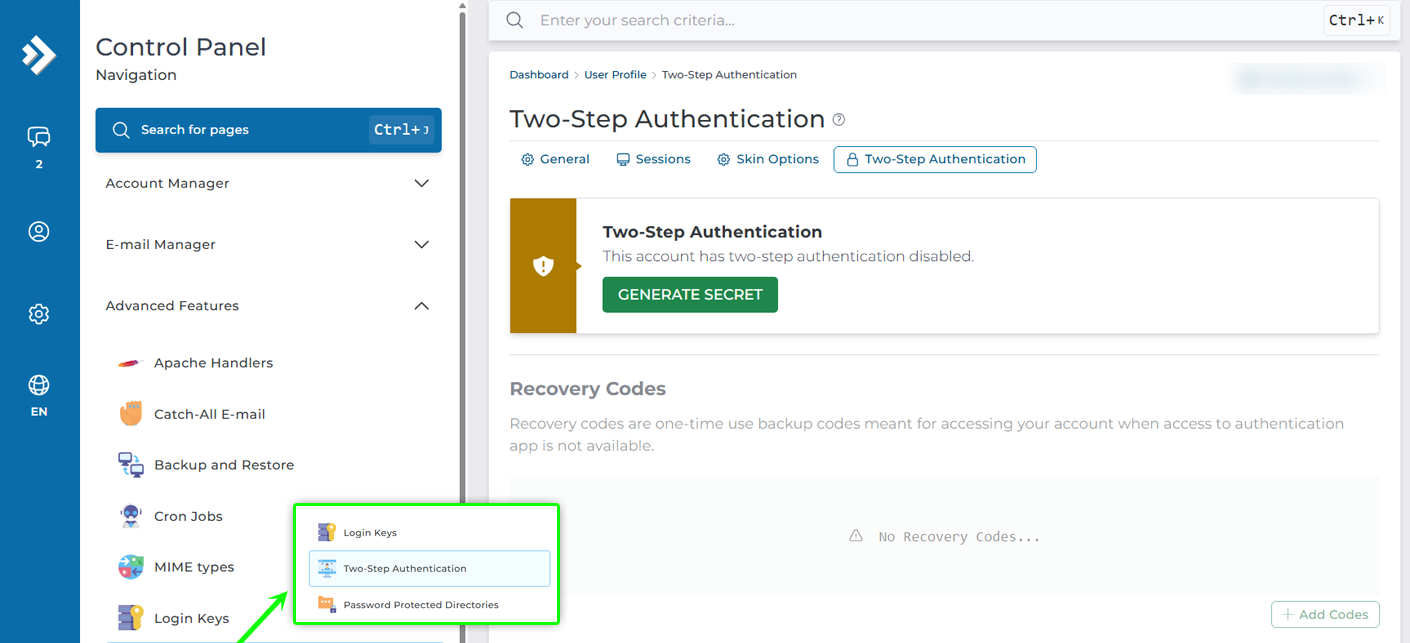
First, open the Advanced Features dropdown in the Control Panel navigation. Select the Two-Step Authentication button. When on this page you can enable the 2FA by clicking Generate Secret.
Setup Two-Step Authentication
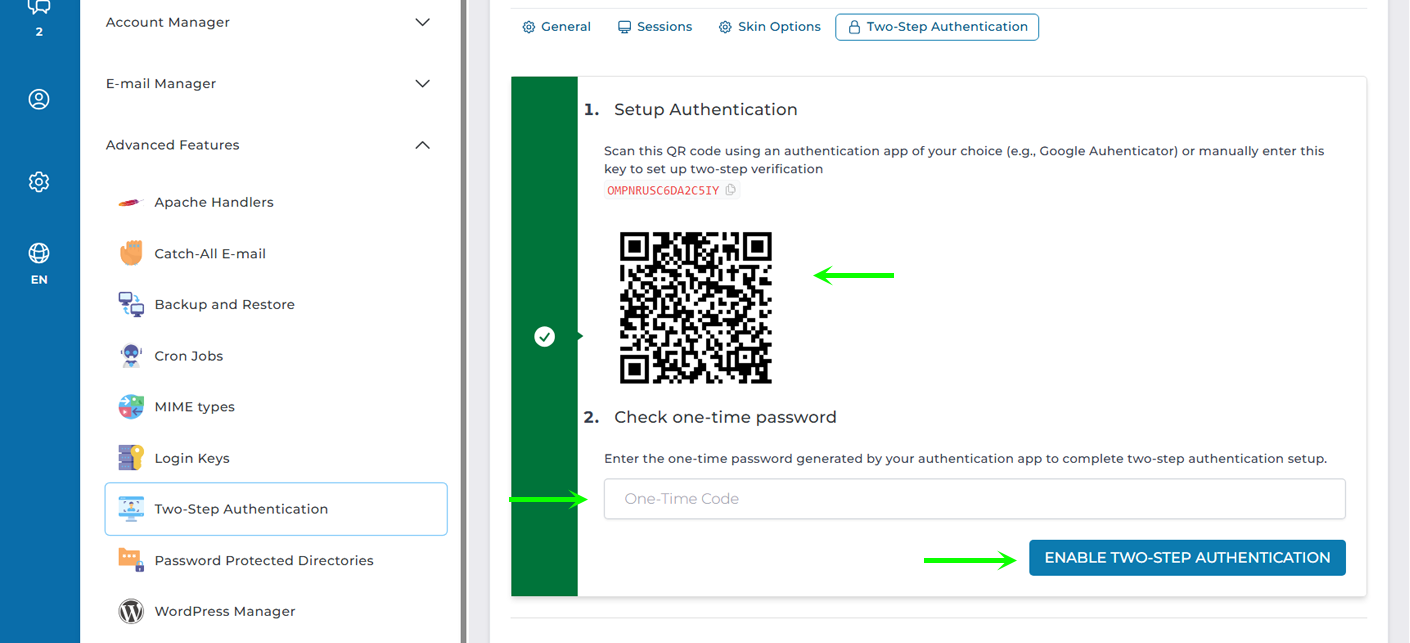
Next, it will show you a QR code as well as a Manual Key entry which you can either scan or input manually into an app of your choosing, it can be Duo, it can be Google Authenticator or any other app. You set it up and then enter the one-time code it generates and then click the Enable Two-Step Authentication to enable it.
Two-Step Authentication Successfully Set
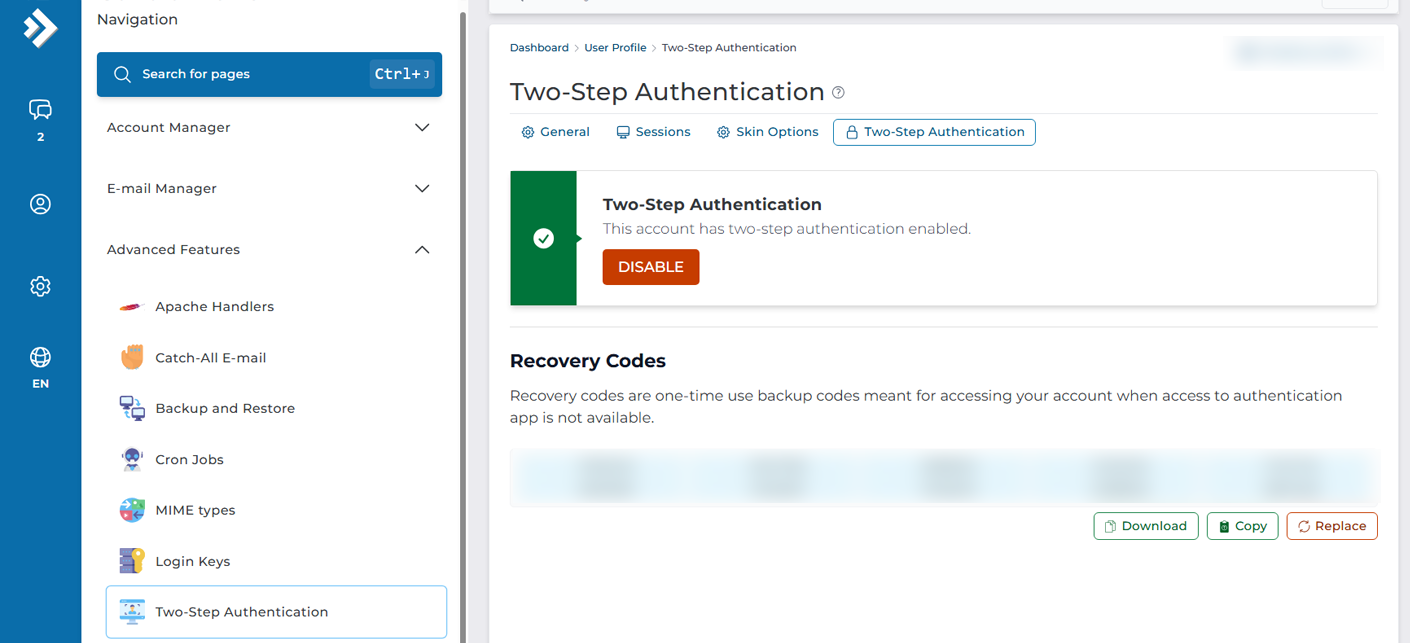
Finally, you are redirected back to the main Two-step screen showing that it’s set and there is a red DISABLE button available, below it you will see list of Recovery codes, these are your extra codes should you ever get locked out for any reason, these codes you may want to download and keep safe.
That is it, now you understand how to create a Two-step authentication for your Shared Hosting account with us.
Have you set your Two-Step Authentication on your client account? If you have not set Two-Step Authentication on your client account with us, feel free to read our article: How to Client Area – Two-Step Authentication.
Frequently Asked Questions
Which authenticator app should I use? Any standard TOTP app works. Google Authenticator, Duo, Authy, and Microsoft Authenticator all do the job. Just scan the QR code or enter the manual key, and the app starts generating your one-time codes.
What happens if I lose my phone or get locked out? That’s what the recovery codes are for. When you enable 2FA, DirectAdmin gives you a list of backup codes. Save them somewhere safe, so you can still log in if you lose access to your authenticator app. Is DirectAdmin 2FA the same as my client area 2FA? No. This protects your DirectAdmin hosting login only. Your Packetra client account uses a separate setting. So secure both if you want full protection, and see our guide on client area two-step authentication.
Good to Know Two-step authentication adds a strong second layer to your login, so a stolen password alone won’t get anyone in. The most important step is saving your recovery codes the moment you enable 2FA. Download them and store them somewhere safe and separate from your phone, since these codes are your only way back in if you lose your authenticator. Keep in mind that if you switch phones, set up the authenticator on the new device before you wipe the old one, otherwise you’ll need those recovery codes to regain access. Run into any issues? Open a support ticket through the client portal and our team will help you.