You can upload files to your DirectAdmin hosting via a FileManager or via FTP. This guide walks you through how to upload your files via FileManagerin DirectAdmin for your Packetra hosting.
This article applies only to Packetra account holders. It assumes you already logged into DirectAdmin. Don’t have a hosting account yet? Check out our Shared Hosting or WordPress Hosting. Already have one? Log in to your portal. Click the DirectAdmin hosting service, then click the “Log in to DirectAdmin” button on the content page to follow the guide below.
Find the System Info & Files Section
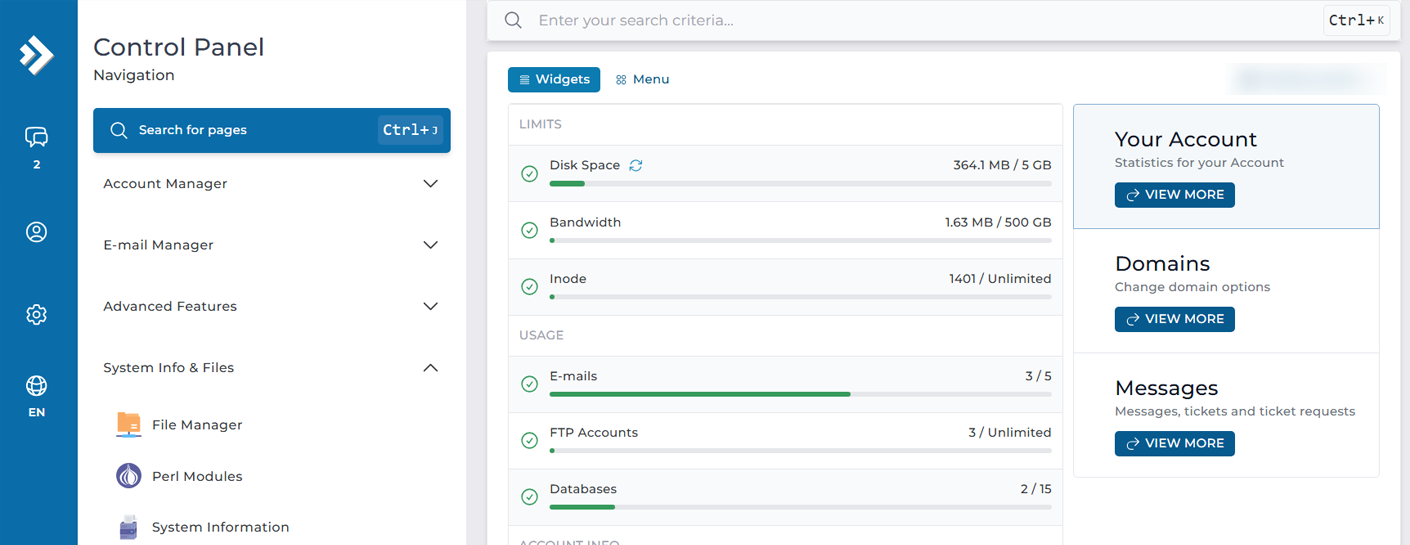
First, open the System Info & Files dropdown in the Control Panel navigation. Select the File Manager button.
FileManager Opens
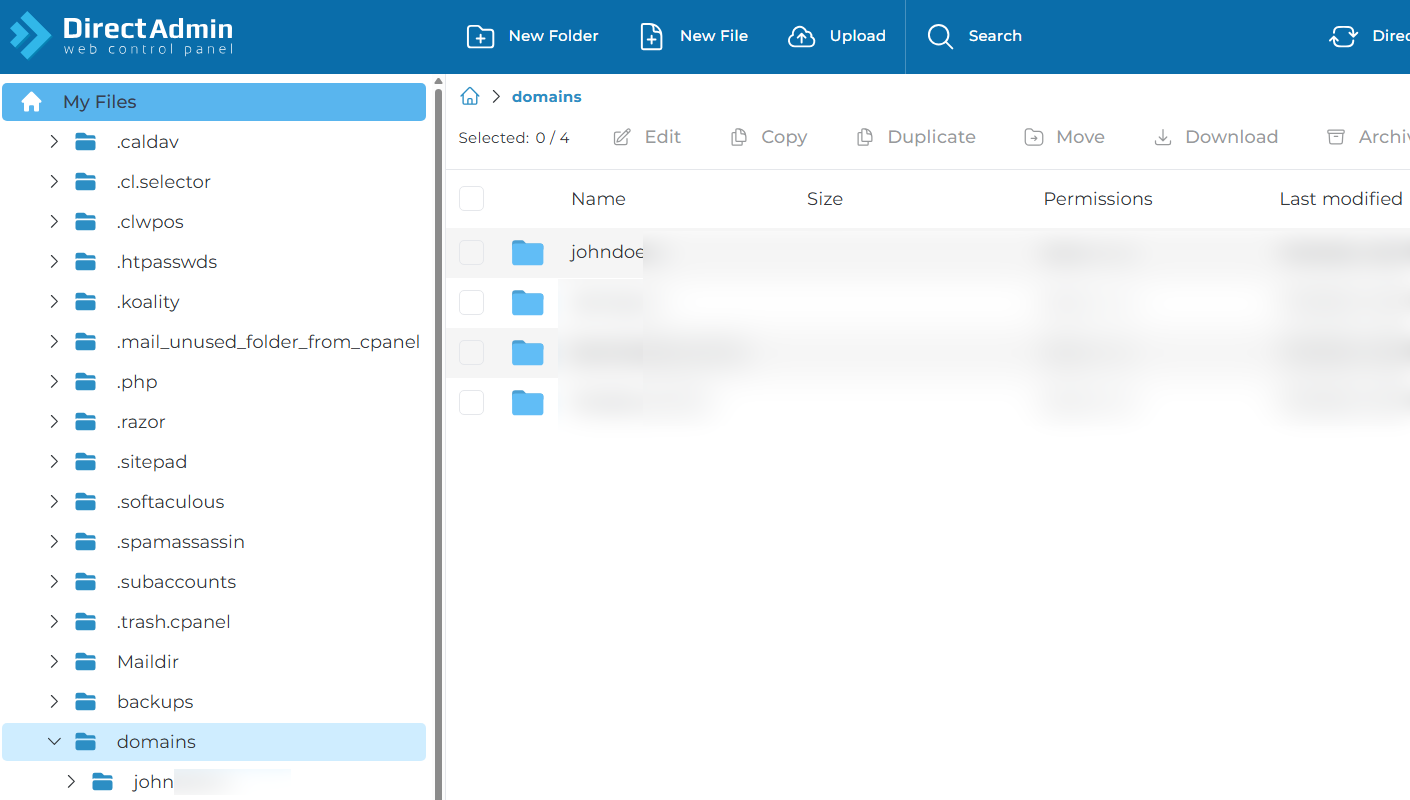
Next, you will be redirected to your DirectAdmin File Manager, this is the manager where you can upload files for your domain/s.
Locating your Public_HTML Directory
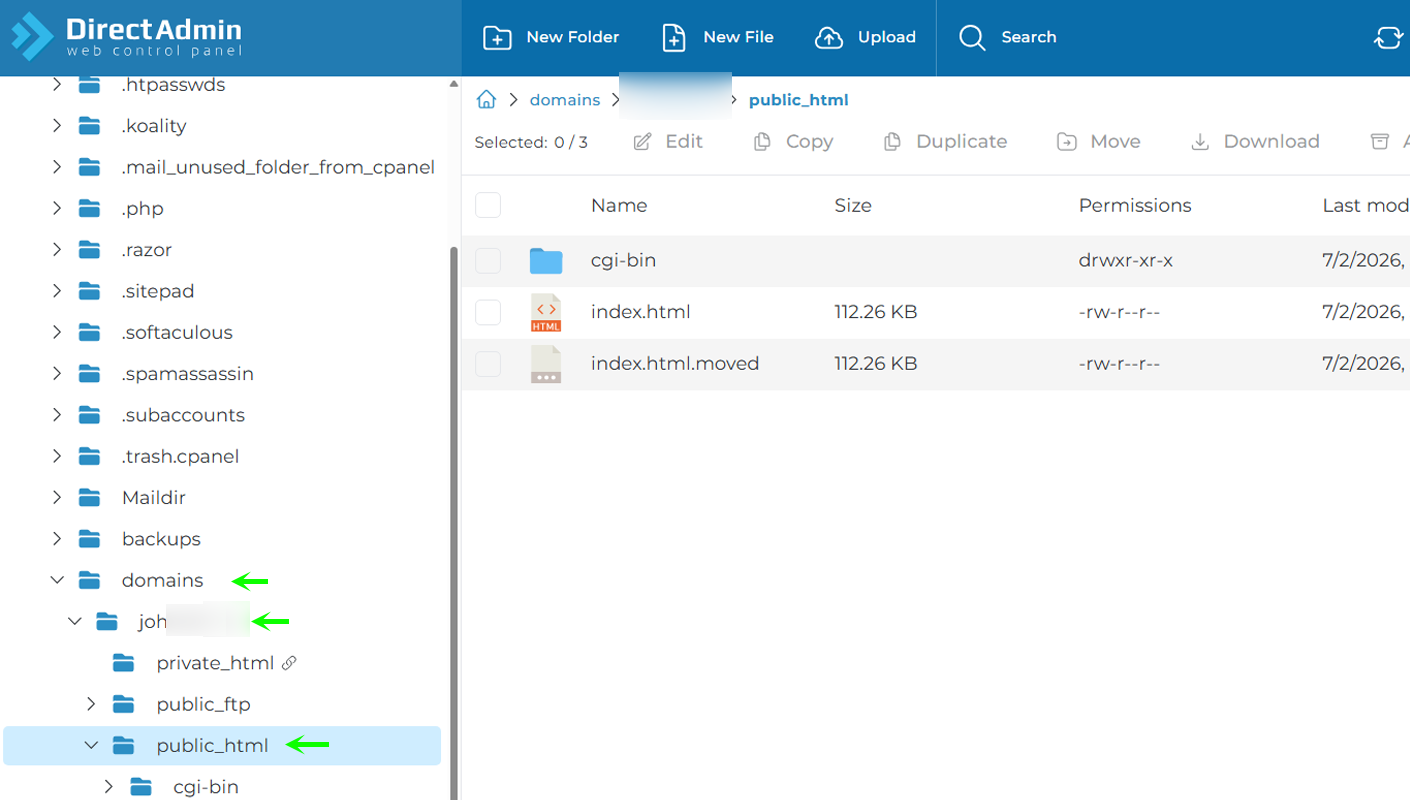
Next, you traverse by selecting the domains > [your domain] > public_html on the left panel, once you are in the public_html folder, you will see an index.html. This is the default set on account creation, this is where you would upload your website files. To upload a file we want to click the Upload from the blue top panel.
Upload Files dialog Opens
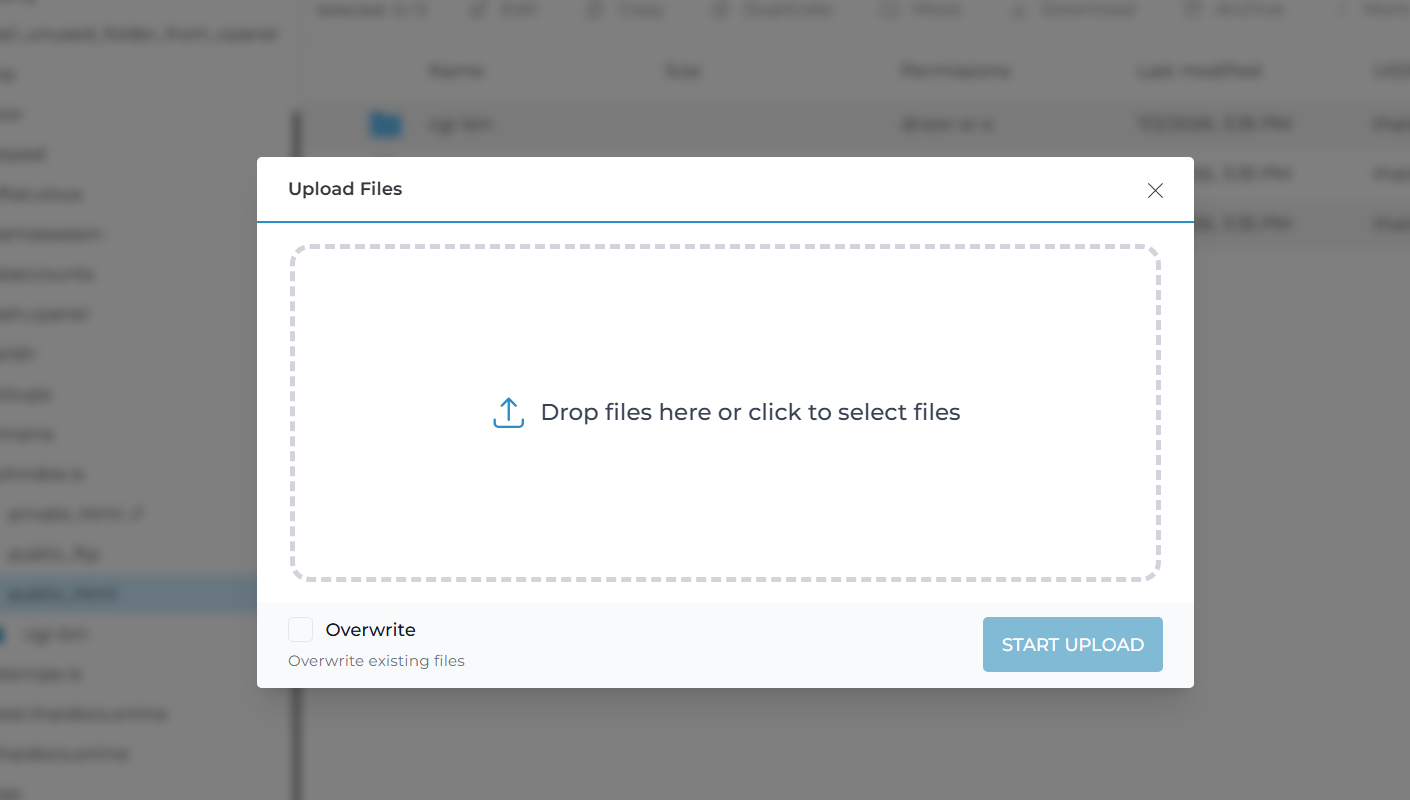
When the Upload Files opens, you can either click to search for a file or drag and drop from your system multiple files at once. When you are ready you then hit Start Upload and it will upload the files into the directory.
That is it, now you know how to upload files to your account via the FileManager.
Frequently Asked Questions
Where do I upload my website files? Put them in your domain’s public_html folder. Traverse to domains > [your domain] > public_html in the left panel. This is the folder that serves your live website, so anything here shows up on your domain.
What is the index file and why does it matter? The index file is what loads when someone visits your domain root. A new account comes with a default index.html. Name your homepage index, so it opens automatically at [yourdomain.tld] without an extra path. Should I use the File Manager or FTP? Both upload files to the same place, so pick what suits the task. The File Manager works well for quick edits and a few files. FTP is better for large uploads or many files at once, since a client like FileZilla handles bulk transfers more smoothly.
Good to Know The File Manager lets you upload several files at once, either by browsing or by dragging and dropping straight into the dialog. Remember that file paths map directly to your URLs, so a file named blog.html becomes reachable at [yourdomain.tld/blog.html]. Keep your homepage named index, since that’s the default file the server loads at your domain root. For large sites or bulk uploads, FTP is often the smoother option, so it’s worth setting up an FTP account alongside the File Manager. Run into any issues? Open a support ticket through the client portal and our team will help you.