You can enable two-step authentication also known as 2FA through the client portal. This guide walks you through how to enable a two-step authentication to protect your Packetra client account.
This article is only applicable to those who have an account with Packetra and it assumes that you are already logged into the portal.
Navigate to Security Settings
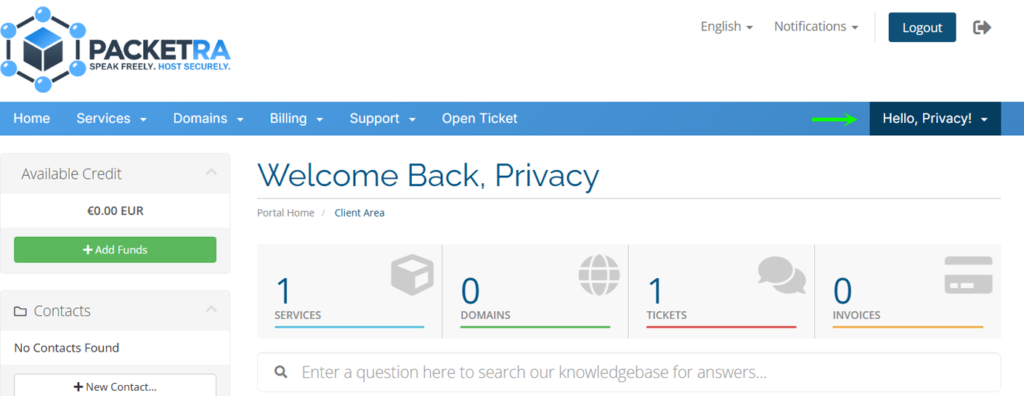
First, click the Hello, <Name!> dropdown in the top navigation. Then select Security Settings from the dropdown menu.
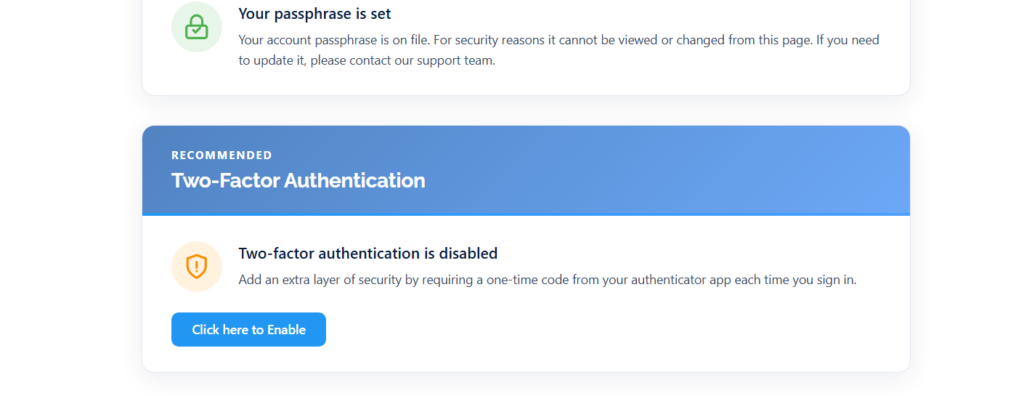
Two-Step Authentication
Next, you click the blue Click here to Enable button to start the process of enabling the Two-Step Authentication or 2FA as its oftened shortened to.
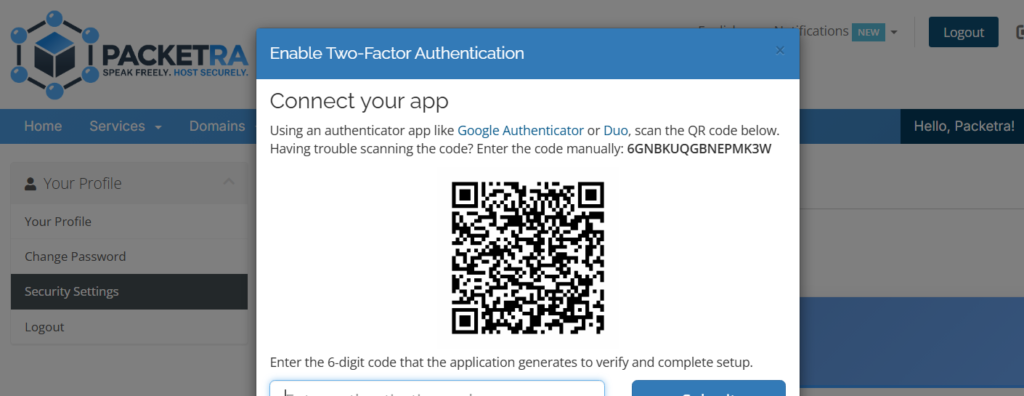
Two-Step QR Code
Next, you can either scan the QR Code or enter the code manually into your Google/Duo Authenticator, or similar app. (Note: the code in this image is an example and is not a functioning 2FA).
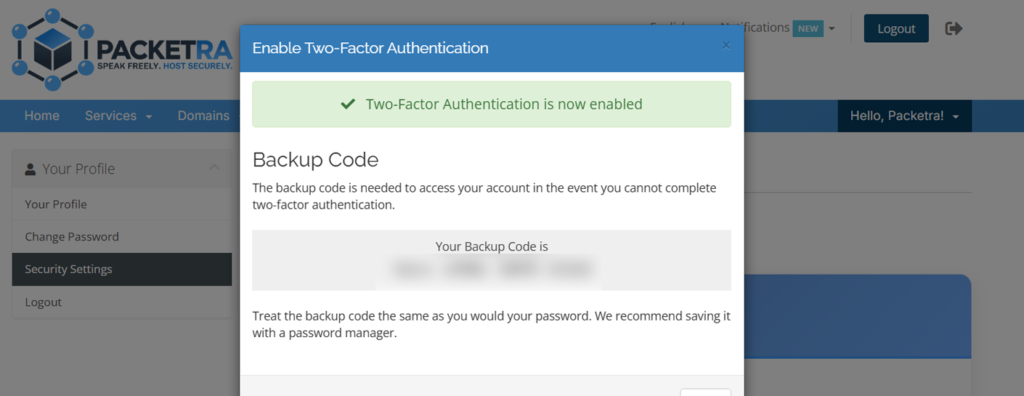
Two-Step Authentication Enabled
Finally, the setup is now complete and you will see that it is now enabled in your account. You will receive backup codes which you can use to enter instead of your Two-step authenticator should you ever lose your phone or get locked out for any reason. Those codes you may wish to keep safe.
That is it, now you know how to enable Two-Step Authentication in your Client Area to protect your account.
Frequently Asked Questions
Which authenticator app can I use? Any standard TOTP app works fine. Google Authenticator, Duo, Authy, and Microsoft Authenticator all do the job. Just scan the QR code or enter the key manually, and the app starts generating your login codes.
What are the backup codes for? They’re your way back in if you lose access to your authenticator. When you enable 2FA, you receive a set of backup codes. Save them somewhere safe, so you can still log in if you lose or replace your phone.
Is this the same as my DirectAdmin 2FA? No. This protects your Packetra client account, where you manage billing and services. Your DirectAdmin hosting login uses a separate 2FA setting. So enable both if you want full protection across your account. Feel free to check out the article How to DirectAdmin – Two-Step Authentication on how to enable it for your DirectAdmin account..
Good to Know Two-step authentication greatly improves your account security, since a stolen password alone won’t let anyone in. The key step is saving your backup codes as soon as you enable 2FA. Store them somewhere safe and separate from your phone, since they’re your only way back in if you lose your authenticator app. Keep in mind that if you get a new phone, set up the authenticator on the new device before wiping the old one, otherwise you’ll need those backup codes to regain access. Run into any issues? Open a support ticket through the client portal and our team will help you.