
You can create backups and restore your backup through the DirectAdmin portal. This guide walks you through how to create a backup of your account as well restore the backup in DirectAdmin for your Packetra hosting.
Find the Advanced Features Section
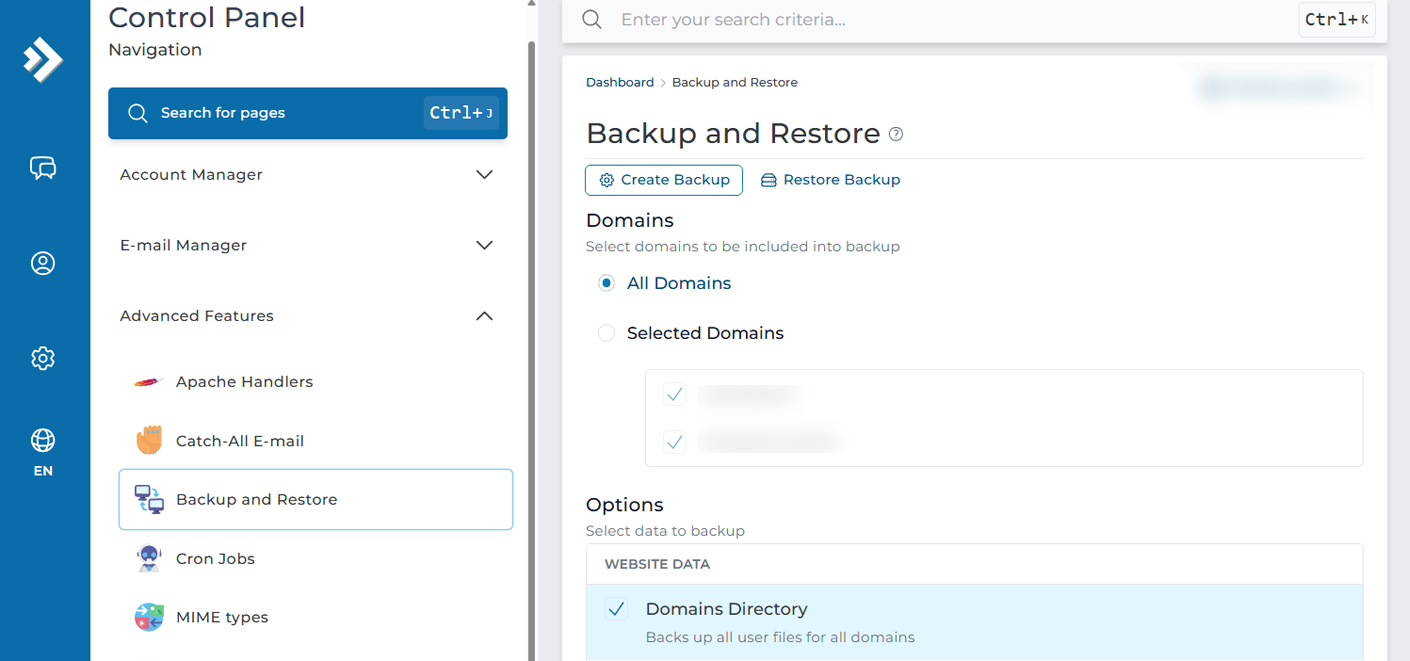
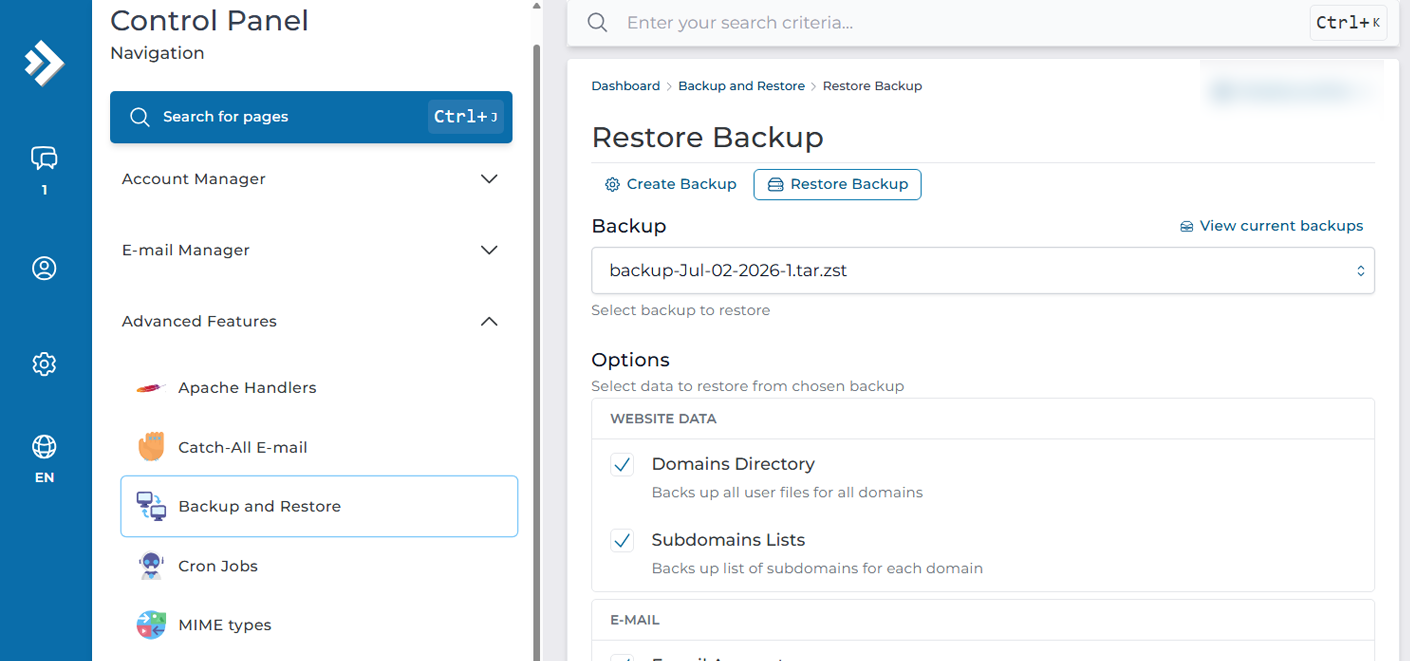
First, open the Advanced Features dropdown in the Control Panel navigation. Select the Backup and Restore button. This way, you can both Create Backup as well as Restore it, remember that when restoring it goes into queue to be restored.
Create Backup
You select all domains or the specific domain you wish to create the backup for, you then select under Options everything you want to backup from website data, email data as well as other settings, by default everything is ticked. We then hit Backup, this will start backing up your data, this may take a few minutes depending on the complexity and size of your account.
A green creation message will appear on the bottom of the screen which will indicate the backup is being created and a message will be received when it’s completed.

Restore a Backup
If you click the Restore Backup button, given the backup has completed, you will see in the dropdown the option to restore you backup, from there you can select what data from the backup you are looking to restore, by default everything is ticked. When you are ready you will hit the Restore Backup button on the bottom of the page.
A green creation message will appear on the bottom of the screen which will indicate the backup is being restored, it will run in the background and eventually it will be completed.

Backup and Restore Success
That is it, now you understand how to create a backup as well as restore it. This is a perfect technique to back up your account before a major revision or changes that could end badly. This does not mean we don’t have you backed up because we do, we keep backups of all our shared hosting users.