You can set cron jobs through the DirectAdmin portal. This guide walks you through how to create a cron job in DirectAdmin for your Packetra hosting.
This article applies only to Packetra account holders. It assumes you already logged into DirectAdmin. Don’t have a hosting account yet? Check out our Shared Hosting or WordPress Hosting. Already have one? Log in to your portal. Click the DirectAdmin hosting service, then click the “Log in to DirectAdmin” button on the content page to follow the guide below.
Find the Advanced Features Section
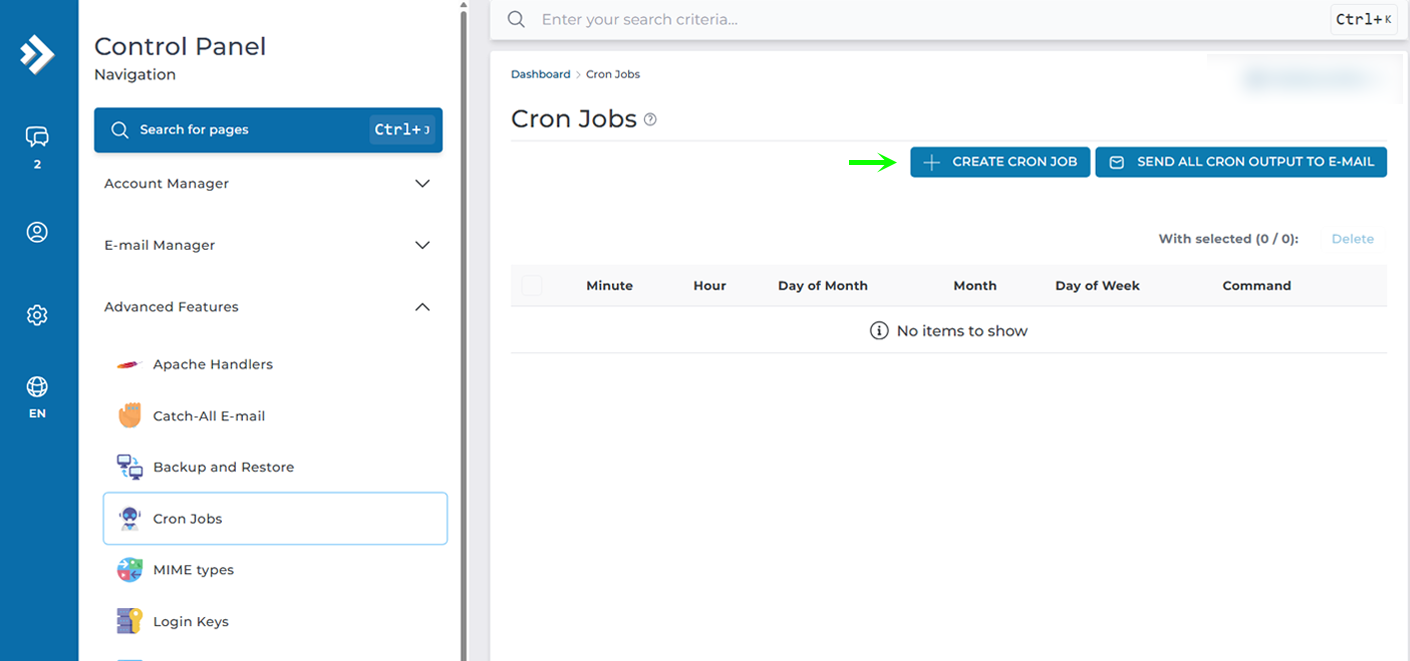
First, open the Advanced Features dropdown in the Control Panel navigation. Select the Cron Jobs button. When on this page you can create a Cron Job by clicking the +Create Cron Job
Create Cron Job
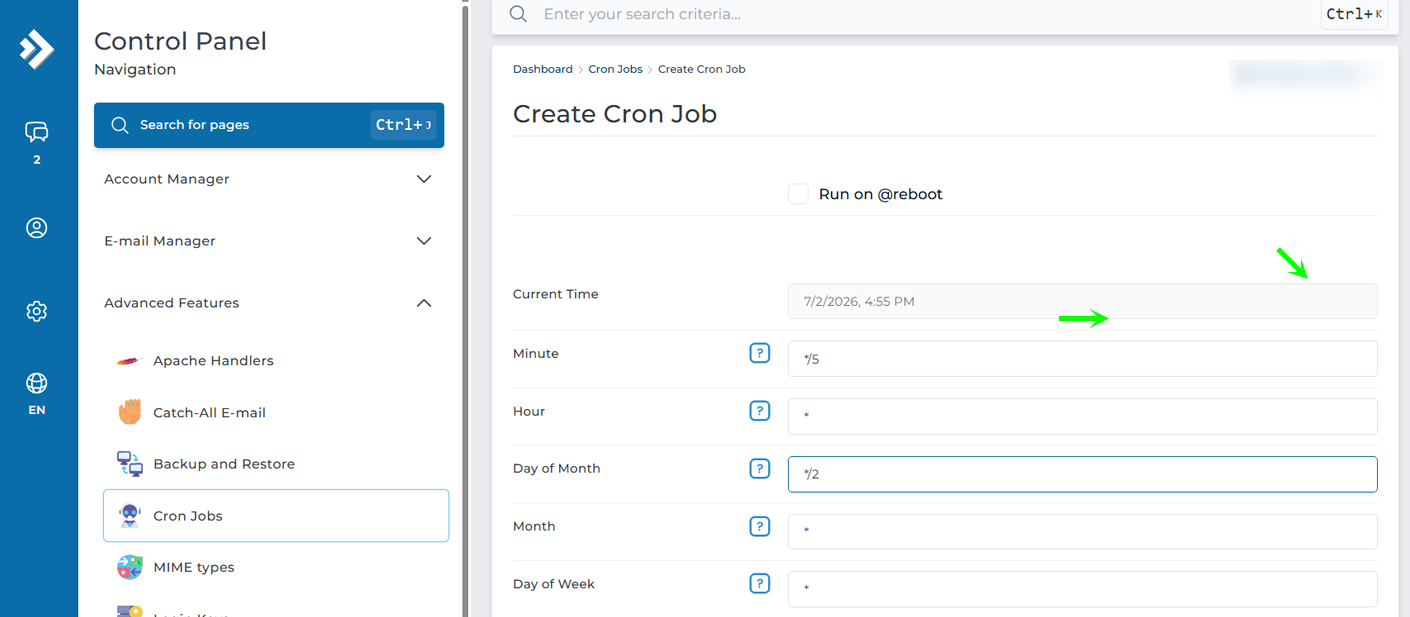
On this page you can set parameteres such as Minute, Hour, Day of Month, Month and Day of Week for your Cron Job. In my example below I entered */5 and */2 for minute and day of the month creating “Cron job will run:Every 5 minutes, every 2 days“,
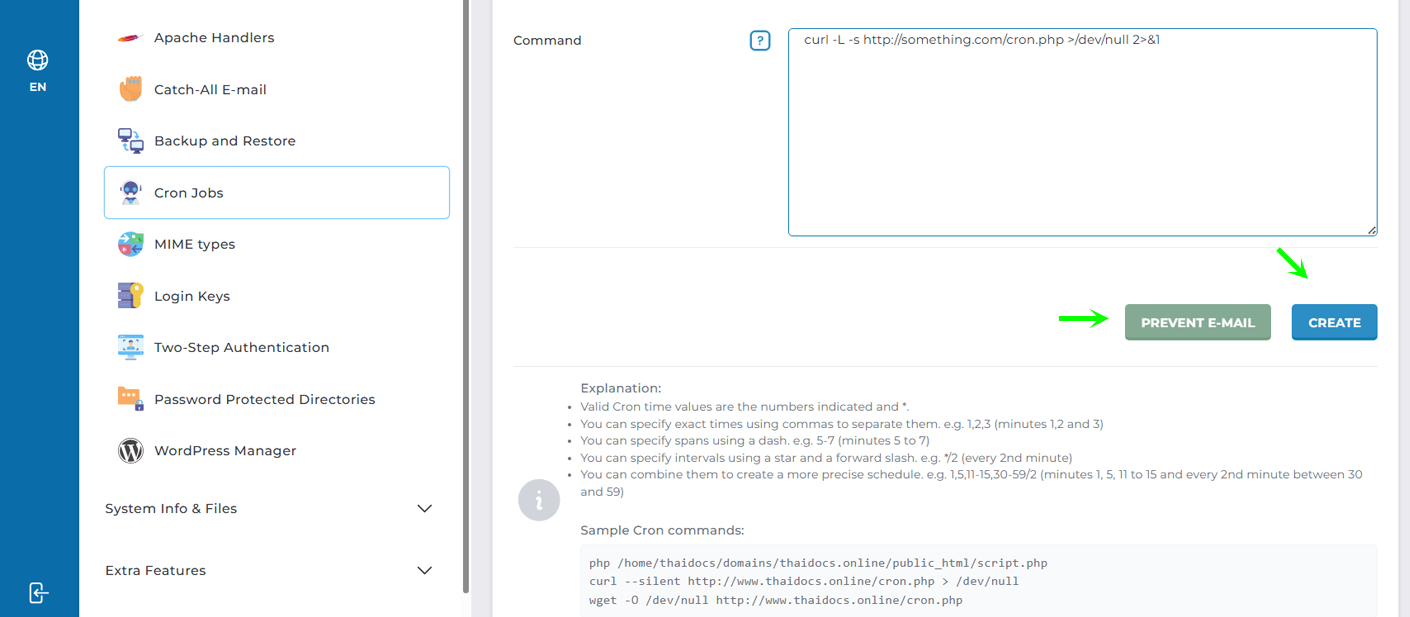
Then in the Command you enter what your cron, in my example I am running a cURL request to a website’s cron.php script. By default you will receive an email of every cron, but to disable that you can click the Prevent E-Mail which will automatically append >/dev/null 2>&1 at the end of your cron command.
When you are ready you can simply click the Create and that will set your Cronjob to run.
CronJob Successful
That is it, now you understand how to create a cron job with your DirectAdmin hosting panel, which can help you set WordPress cron, or any other system cron that has to automate at a certain time.
Frequently Asked Questions
How do I set the schedule for a cron job? You use five fields: Minute, Hour, Day of Month, Month, and Day of Week. Each one accepts values like */5, which means every five minutes. DirectAdmin then shows a plain-English summary of when the job will run, so you can confirm before you save.
How do I stop the cron emails? By default, each cron run emails you the output. To turn that off, click Prevent E-Mail. This appends >/dev/null 2>&1 to your command, so the output gets discarded instead of mailed to you. Can I run a WordPress cron this way? Yes. A common setup is a cURL request to your site’s cron script, such as cron.php. This works well for WordPress, since you can disable its built-in cron and trigger it on a reliable schedule instead.
Good to Know Cron jobs are great for automating repeat tasks, but a too-frequent schedule can strain your account resources. Pick an interval that matches the job, so a light task doesn’t run every minute for no reason. Keep in mind that the command must be correct and the target script must exist, otherwise the job fails silently, especially if you’ve turned off the email output. When you’re testing a new cron, leave the emails on at first, so you can see any errors before you switch them off. Run into any issues? Open a support ticket through the client portal and our team will help you.