You can manage your domain SSL Certificates easily through the DirectAdmin portal. This guide walks you through how to manage a domain SSL in DirectAdmin for your Packetra hosting.
This article applies only to Packetra account holders. It assumes you already logged into DirectAdmin. Don’t have a hosting account yet? Check out our Shared Hosting or WordPress Hosting. Already have one? Log in to your portal. Click the DirectAdmin hosting service, then click the “Log in to DirectAdmin” button on the content page to follow the guide below.
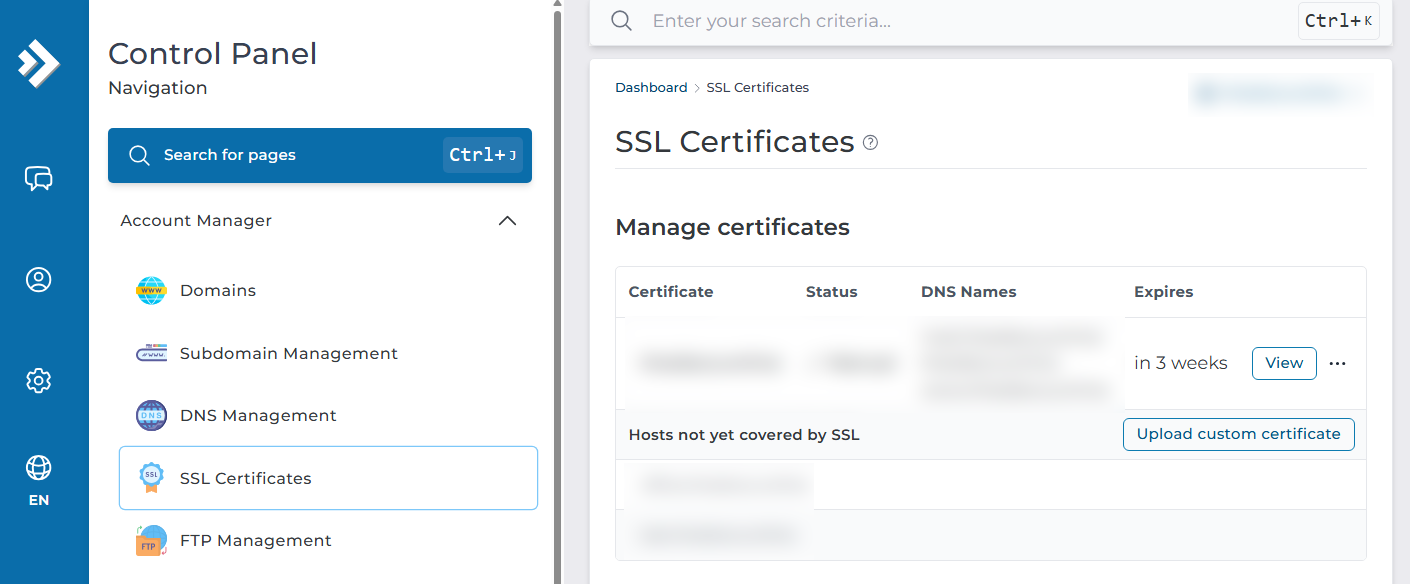
Find the SSL Certificates Section
First, open the Account Manager dropdown in the Control Panel navigation. Select the SSL Certificates button. This way, you can either request a ACME certificates which we provide for free through Lets Encrypt, or you can upload your own custom certificates from a vendor such as RapidSSL etc.
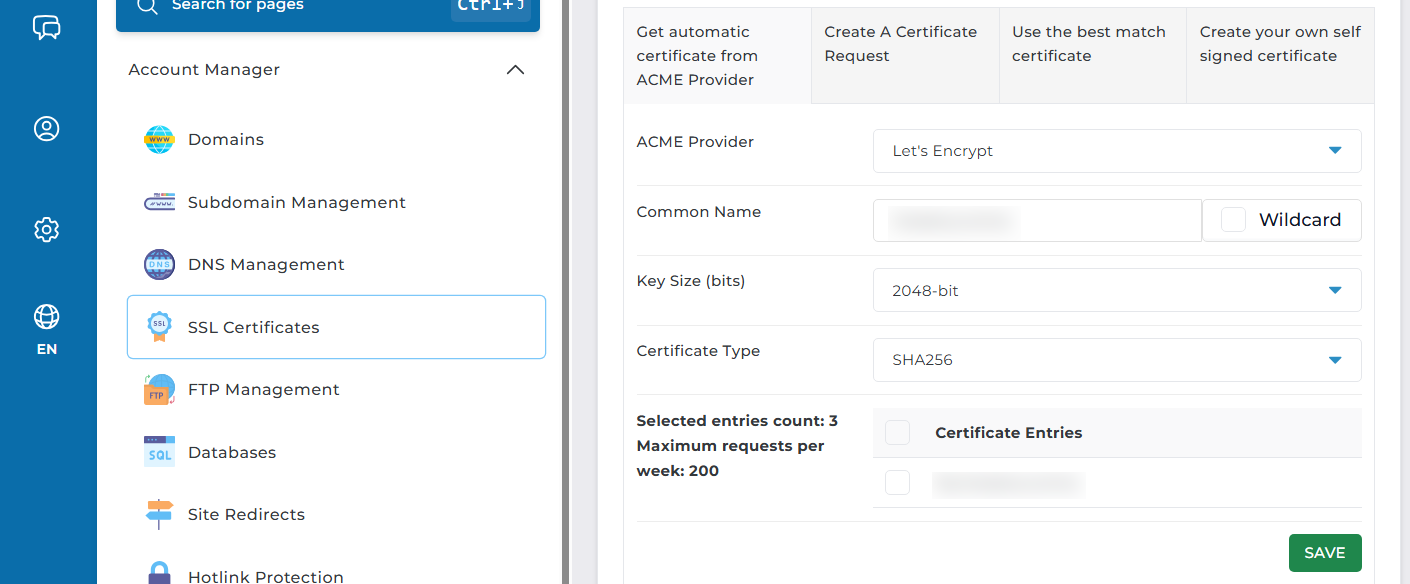
Get Automatic Certificate from Provider
Next, as you scroll down you can select which type of Certificate you are interested in, in this example we are going to go with the free Lets Encrypt certificate. We select “Get automatic certificate from ACME Provider” button, and then in the dropdown we select Let’s Encrypt. In the Common Name we will put our domain name, you can then select Key size and Certificate but you can leave them default.
When you are ready, if you have any subdomain records such as “backend” or “blog” that you would like certified as well, you select them in your Certificate entries section given they exist. Then you click the SAVE to start requesting the certificate.
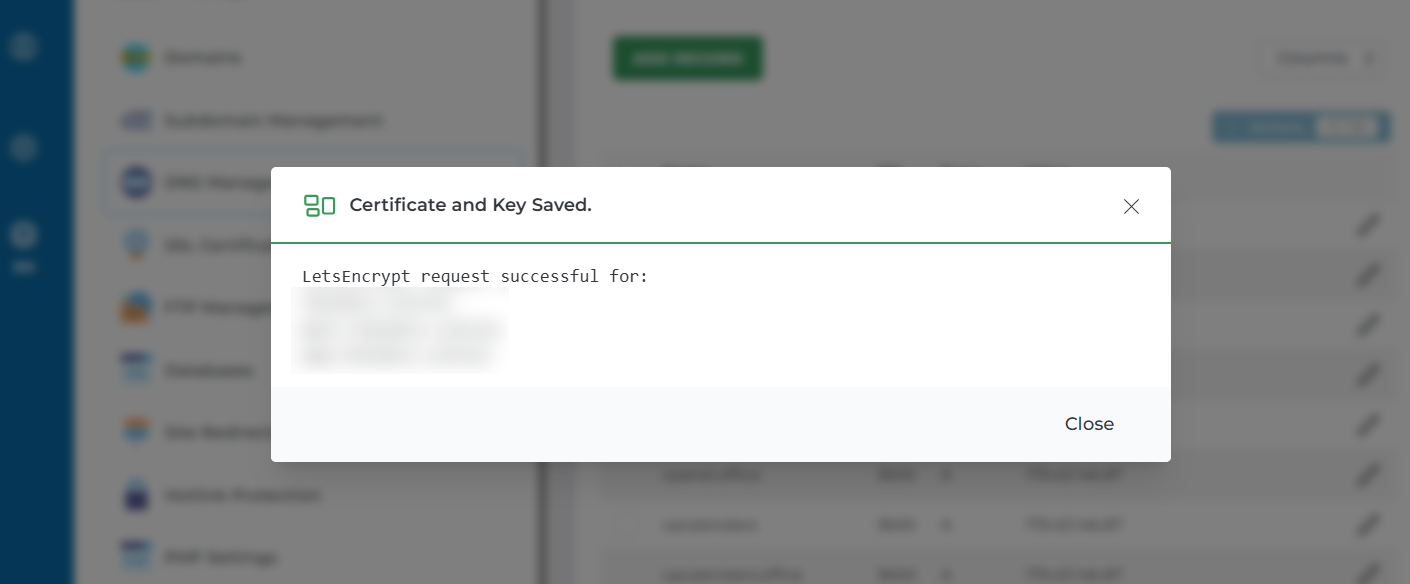
Successfully Certified with SSL from Let’s Encrypt
Finally, if everything was a success, you will receive a popup dialog box after few seconds that state LetsEncrypt request successful for: and it listed domains/subdomains you applied for.
That is it. Now you know how to SSL certify your website through the DirectAdmin panel. This will enable the Lock on your site for secure traffic.
Frequently Asked Questions
Do I have to pay for an SSL certificate? No. We provide free ACME certificates through Let’s Encrypt. Just pick “Get automatic certificate from ACME Provider” and choose Let’s Encrypt. You can also upload a paid certificate from a vendor such as RapidSSL if you prefer.
Can one certificate cover my subdomains too? Yes. When you request the certificate, select any subdomain records such as “blog” or “backend” in the Certificate entries section. However, the subdomain records must already exist before you can add them. Why didn’t my certificate request succeed? A few things can cause this. First, make sure your domain points to our nameservers or at least to our hosting IP address, since the request needs to verify your domain. Second, confirm the domain and any subdomains resolve correctly. Then try the request again once the DNS checks out.
Good to Know An SSL certificate enables the padlock in your visitors’ browsers and secures the traffic to your site. Let’s Encrypt certificates last 90 days, but they renew automatically, so you don’t need to track the expiry yourself. You can leave the key size and certificate settings at their defaults, as these suit most websites. Run into any issues? Open a support ticket through the client portal and our team will help you.