You can manage your DirectAdmin SQL Databases easily through the DirectAdmin portal. This guide walks you through how to add an SQL Database and user in DirectAdmin for your Packetra hosting.
This article applies only to Packetra account holders. It assumes you already logged into DirectAdmin. Don’t have a hosting account yet? Check out our Shared Hosting or WordPress Hosting. Already have one? Log in to your portal. Click the DirectAdmin hosting service, then click the “Log in to DirectAdmin” button on the content page to follow the guide below.
Find the Databases Section
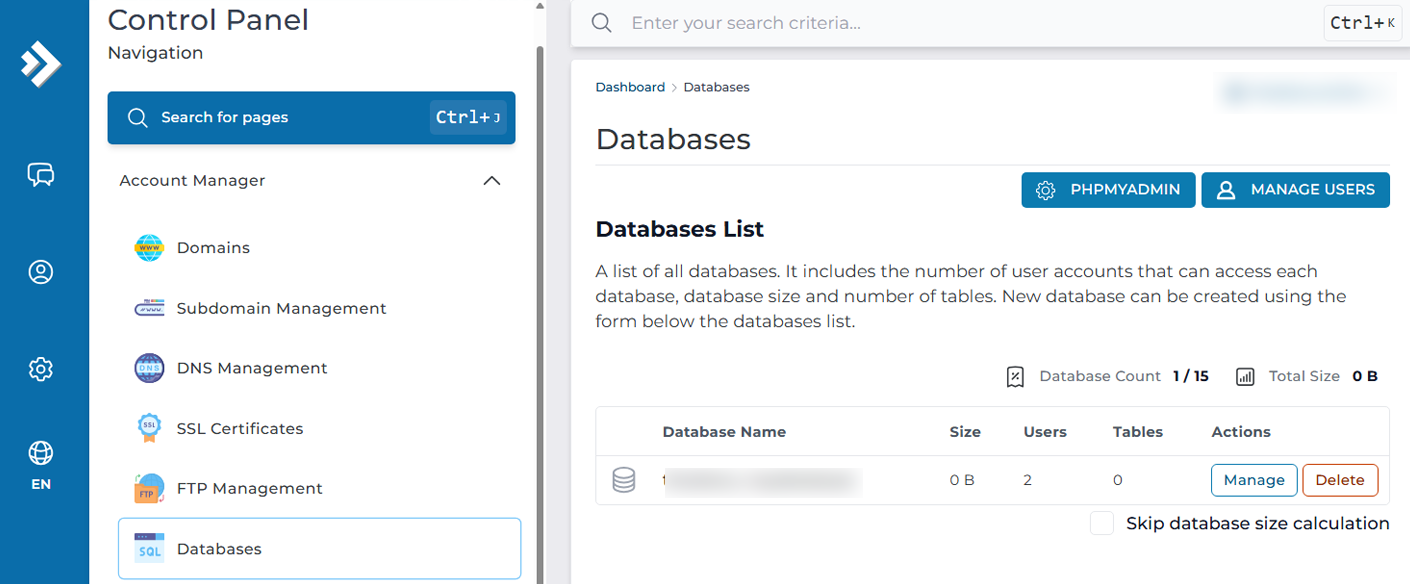
First, open the Account Manager dropdown in the Control Panel navigation. Select the Databases button. This way, you can either add/remove a database or user, this area is for the total management of your SQL Databases including access directly to your PHPMyAdmin (This is the tool that allows you to work directly with SQL).
Create a Database
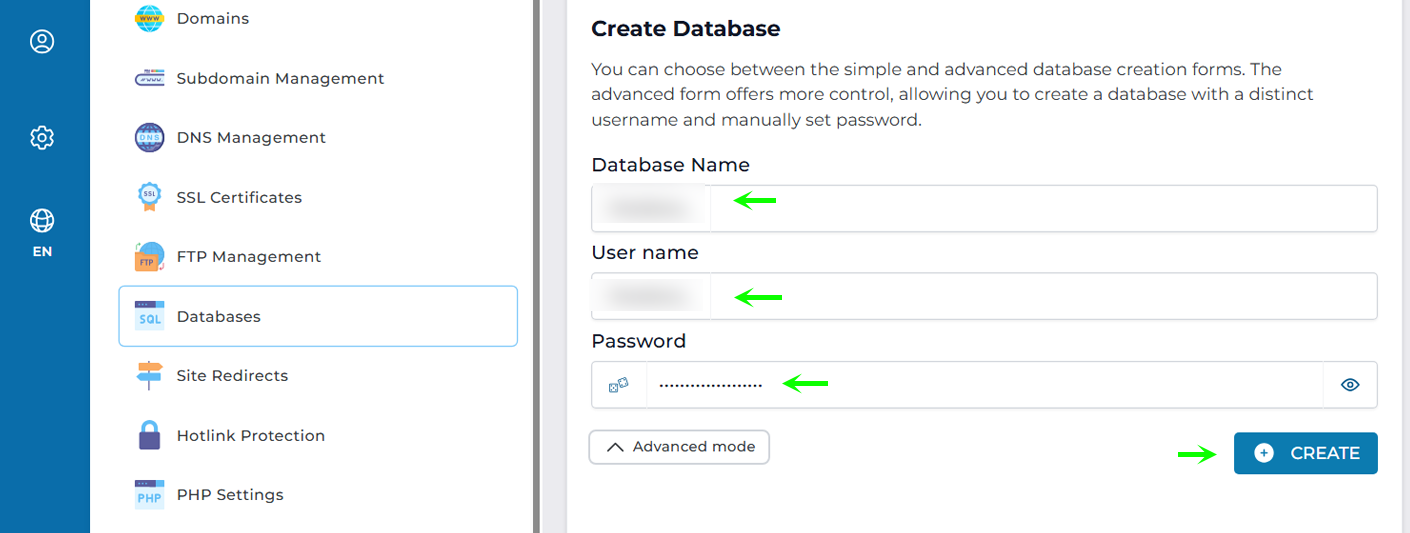
Next, on this page you scroll down to the Create section, once you are there you will fill in the “Database Name”, “User name” and “Password”, or toggle Advanced for extra options during creation. Then simply click Create.
Database is Created
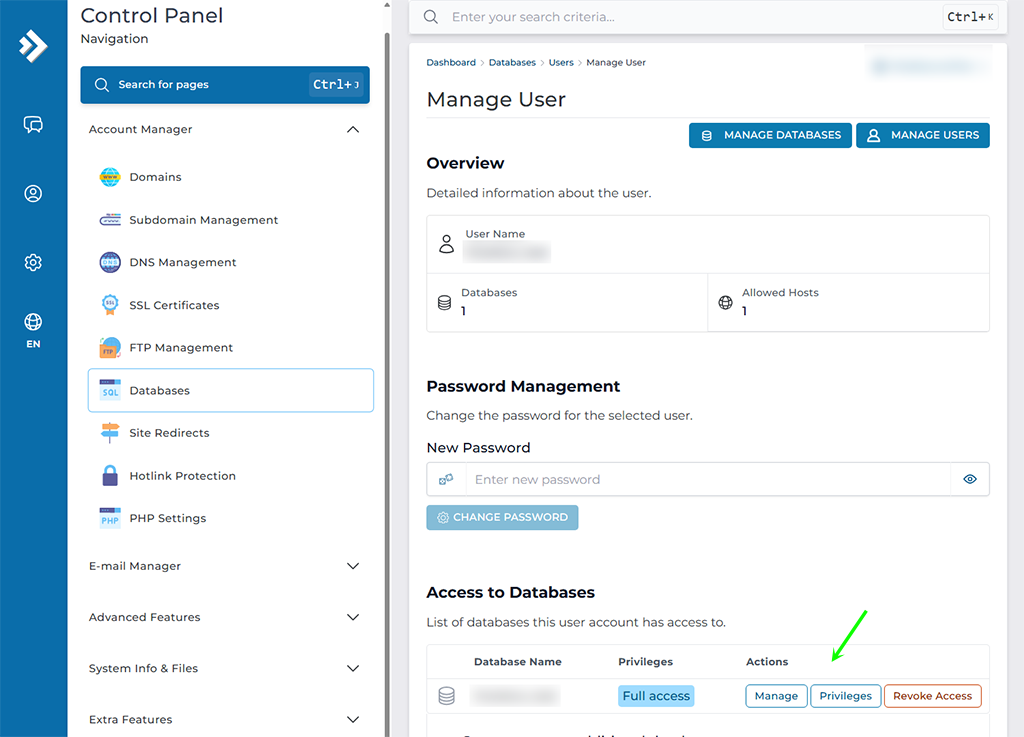
Next, Now that the database and username is created, you will scroll up to the Databases list and click the button that says Manage Users. By default the user that was created, will have full privileges to the database but by clicking the Manage Users you can customize the permissions and or add even another user to the same database.
Once you are on this page, you can either adjust the Privileges, You can Manage the database such as add users to it, and Revoke Access for a particular user, which is a nice feature if you have a temporary access created to the database for a developer which has certain access rights.
That is it. Now you know how to add/remove SQL Databases through your DirectAdmin hosting panel and manage it’s users and privilileges.
Frequently Asked Questions
What does the Advanced toggle do when creating a database? By default, you enter the database name, username, and password yourself. Turn on Advanced when you want extra control over the setup. Leave it off for a quick, standard database creation.
Can I have more than one user on the same database? Yes. Open Manage Users on the database in the list. From there you can add another user and set their privileges. So you can give a developer their own login rather than sharing the main one. How do I remove a user’s access later? Go to Manage Users for that database. Then use Revoke Access for the user you want to remove. This works well for temporary access, since you can pull it once the developer finishes the work.
Good to Know Keep your database credentials handy, since your applications, such as WordPress, need them to connect. When you set up a site, use these details in its configuration file. For security, give each user only the privileges they actually need rather than full access by default. So if you create a login for a developer or a specific task, limit its permissions and revoke it once the work is done. Run into any issues? Open a support ticket through the client portal and our team will help you.