You can manage your domain DNS easily through the DirectAdmin portal. This guide walks you through how to manage a domain DNS in DirectAdmin for your Packetra hosting.
This article applies only to Packetra account holders. It assumes you already logged into DirectAdmin. Don’t have a hosting account yet? Check out our Shared Hosting or WordPress Hosting. Already have one? Log in to your portal. Click the DirectAdmin hosting service, then click the “Log in to DirectAdmin” button on the content page to follow the guide below.
Find the DNS Management Section
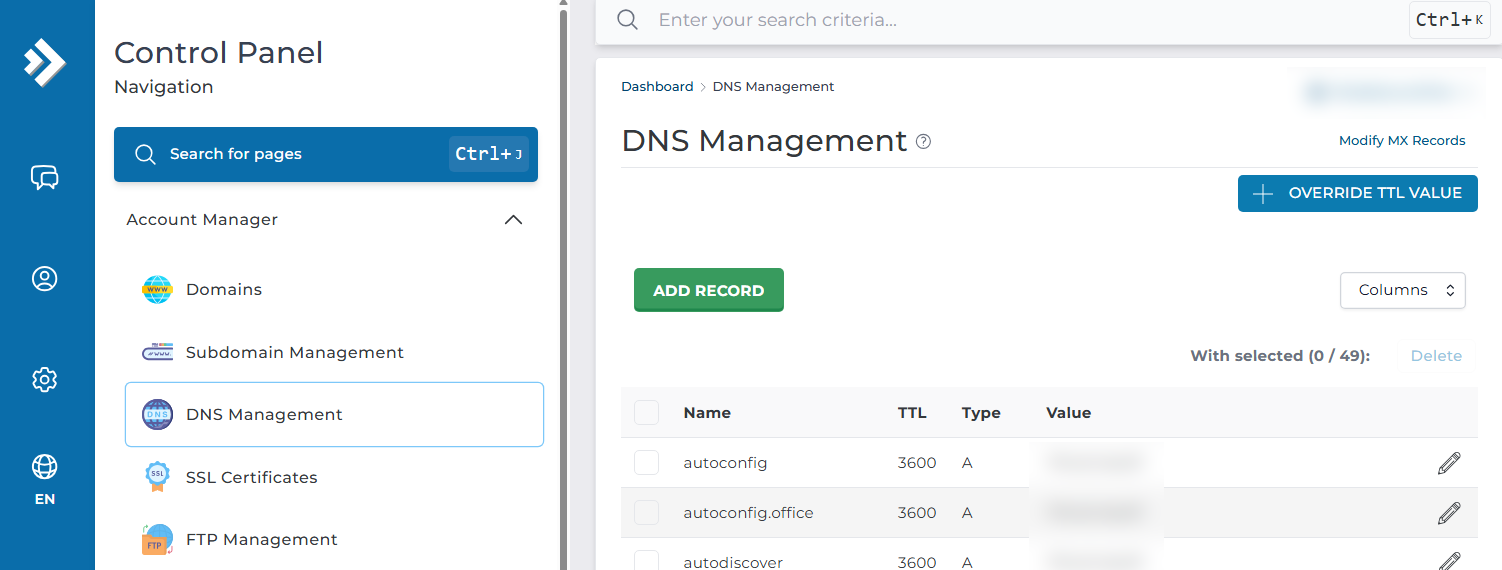
First, open the Account Manager dropdown in the Control Panel navigation. Select the DNS Management button. This way, you can add or add or remove DNS records such as A records, TXT records, CNAME records as needed. You simply click the green Add Record
Add a new Record
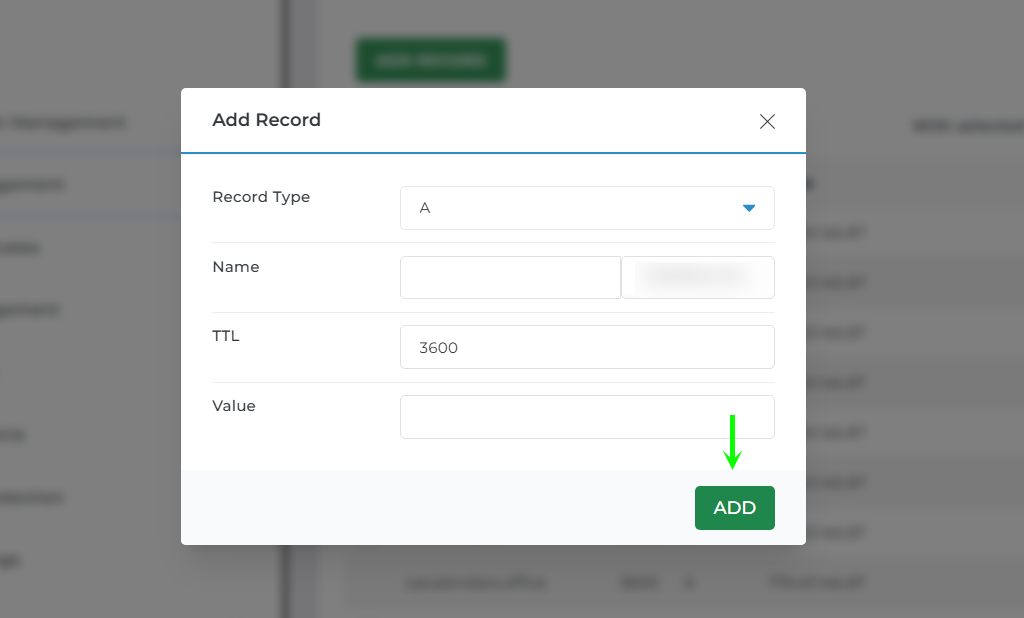
Next, you will see a popup dialog which allows you to set the Record type, name, TTL (Time to Live) and the value. This is where you set the record, when you are ready you click the green ADD button.
Note: This is only applicable if you are using our NS for your hosting and not a 3rd party such as CloudFlare.
Successfully Added a Record
Finally, a green “Record Added” box appears at the bottom of the screen. The image below shows an example.
That is it. Now you know how to add a DNS record to your account. Please note that if you are using a 3rd party DNS service such as CloudFlare or any other NS, this will have no impact as your domain dns management isn’t with us.
Frequently Asked Questions
Which DNS records can I add? You can add the common record types, such as A, TXT, and CNAME. Pick the type from the dropdown in the Add Record dialog. Then set the name, TTL, and value for that record.
Why aren’t my DNS changes taking effect? Two things can cause this. First, check that your domain uses our nameservers. If you point your DNS to a third party such as Cloudflare, changes here have no effect. Second, allow time for propagation. New records can take a while to spread across the internet. What is TTL and what should I set it to? TTL means Time to Live. It tells servers how long to cache the record before they check again. A lower value means changes apply faster. A higher value eases the load but slows updates. The default works fine for most cases.
Good to Know DNS records only work here if your domain uses our nameservers. If you run your DNS with a third party such as Cloudflare, manage the records on their side instead. So check where your nameservers point before you make changes. As a result, you avoid editing records that never take effect. Run into any issues? Open a support ticket through the client portal and our team will help you.