You can manage your DirectAdmin FTP Accounts easilythrough the DirectAdmin portal. This guide walks you through how to add a FTP Account in DirectAdmin for your Packetra hosting.
This article applies only to Packetra account holders. It assumes you already logged into DirectAdmin. Don’t have a hosting account yet? Check out our Shared Hosting or WordPress Hosting. Already have one? Log in to your portal. Click the DirectAdmin hosting service, then click the “Log in to DirectAdmin” button on the content page to follow the guide below.
Find the FTP Management Section
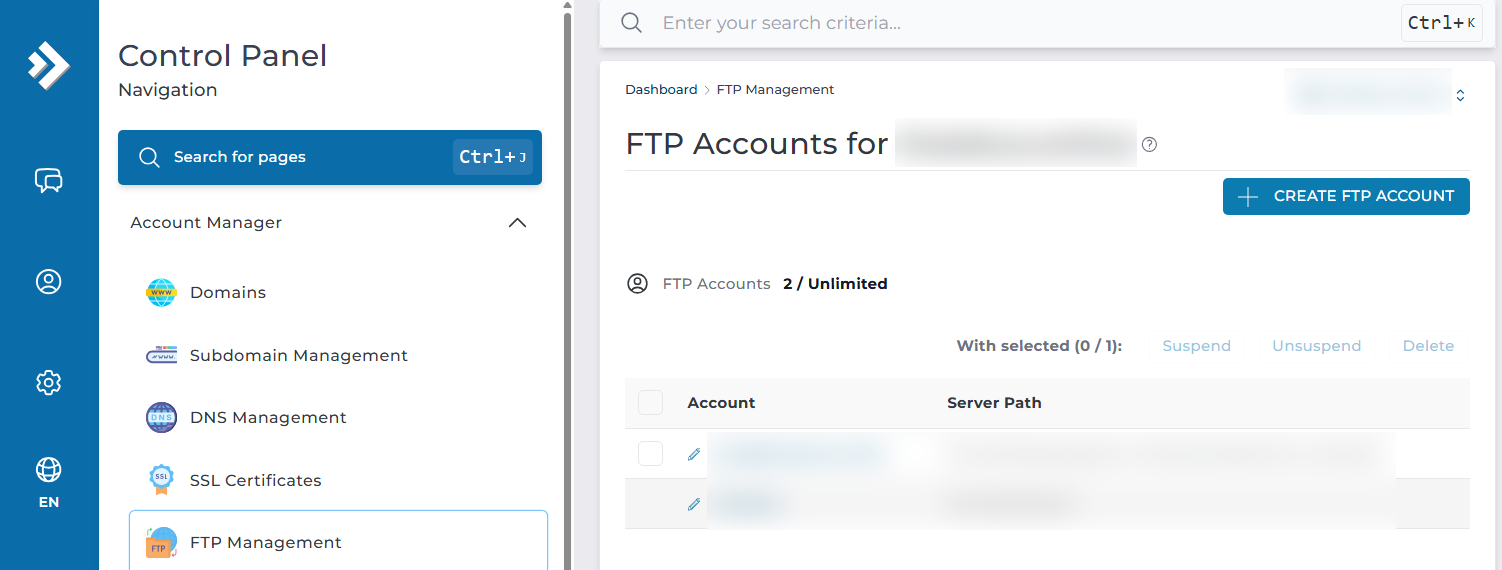
First, open the Account Manager dropdown in the Control Panel navigation. Select the FTP Management button. This way, you can either add or remove accounts as needed. When you are on this page you simply click the +Create FTP Accoount button on the top right of the page like shown in the screenshot below.
Create FTP Account
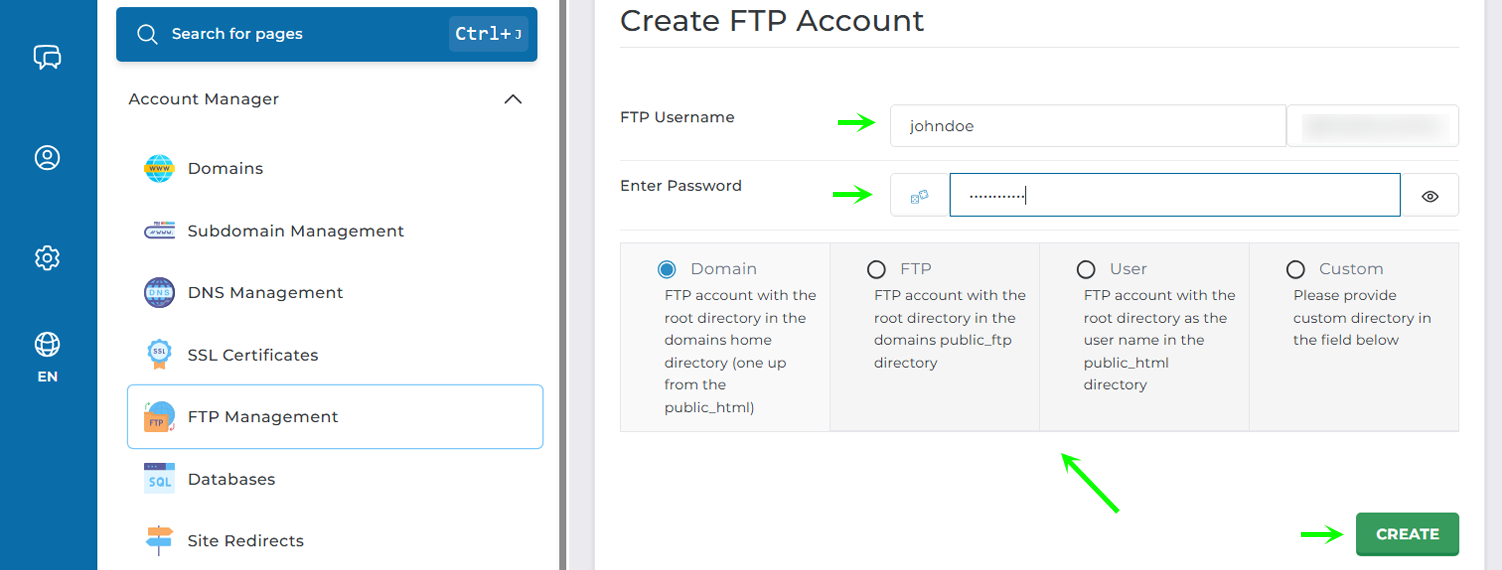
Next, you fill in the details of the FTP account, the Username, Password and you can select from 4 different options on how you wish to set the FTP account, the default is Domainbut you can customize here where this user goes and its privileges, especially if you select the Custom at the end. In our example, we went with the default, then you simply click Create
FTP Account Created
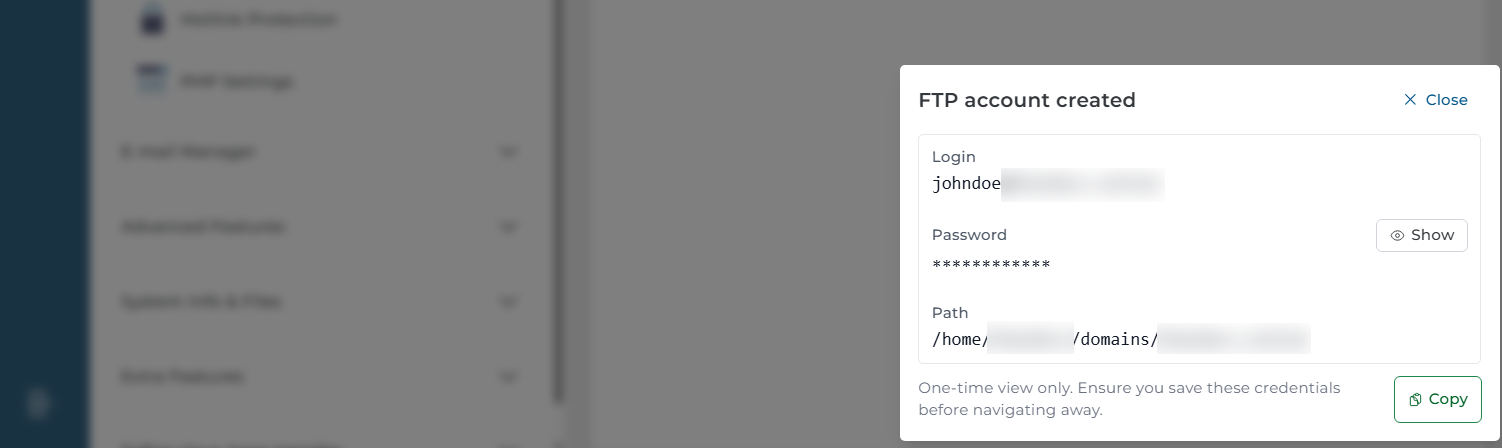
Finally, if everything was successful, you will receive a screen with your FTP account information and path, you need to copy the details as they will only be shown once.
That is it. Now you know how to add FTP accounts to your DirectAdmin hosting panel, this is useful for allowing developers and others you wish to let have access but not have full access to your account.
Frequently Asked Questions
What do the different FTP account options mean? You get four setup options that control where the user lands and what they can reach. The default, Domain, gives access to your domain’s files. The Custom option lets you set a specific path and privileges. Pick Custom when you want to limit a user to one folder.
Why can’t I see my FTP password again? The account details show only once, right after you create the account. So copy the username, password, and path straight away. If you lose them, you can’t view the password again. Instead, you reset it to set a new one. What do I need to connect to my FTP account? You need an FTP client such as FileZilla, plus the details from the creation screen. Enter the hostname, username, password, and port. Then connect and you’ll see the files under the path assigned to that account.
Good to Know FTP accounts let you give developers or contractors access to your files without handing over your full hosting login. You can create a separate account for each person, then remove it once the work finishes. For tighter control, use the Custom option to lock a user into a single folder rather than your whole domain. Run into any issues? Open a support ticket through the client portal and our team will help you.