You can manage your email accounts easily through the DirectAdmin portal. This guide walks you through how to create an email account in DirectAdmin for your Packetra hosting.
This article applies only to Packetra account holders. It assumes you already logged into DirectAdmin. Don’t have a hosting account yet? Check out our Shared Hosting or WordPress Hosting. Already have one? Log in to your portal. Click the DirectAdmin hosting service, then click the “Log in to DirectAdmin” button on the content page to follow the guide below.
Find the E-Mail Accounts Section
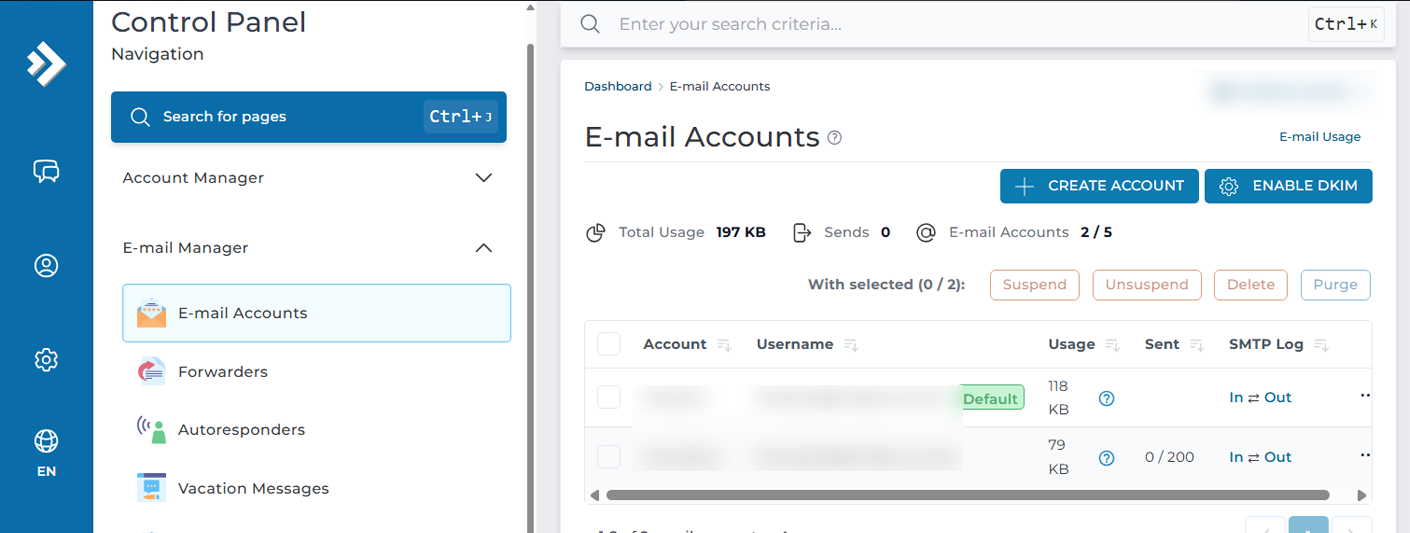
First, open the E-Mail Manager dropdown in the Control Panel navigation. Select the E-mail Accounts button. This way, you can either add or remove an email account. Once you are on the page you simply click the +Create Account button.
Create Mail Account
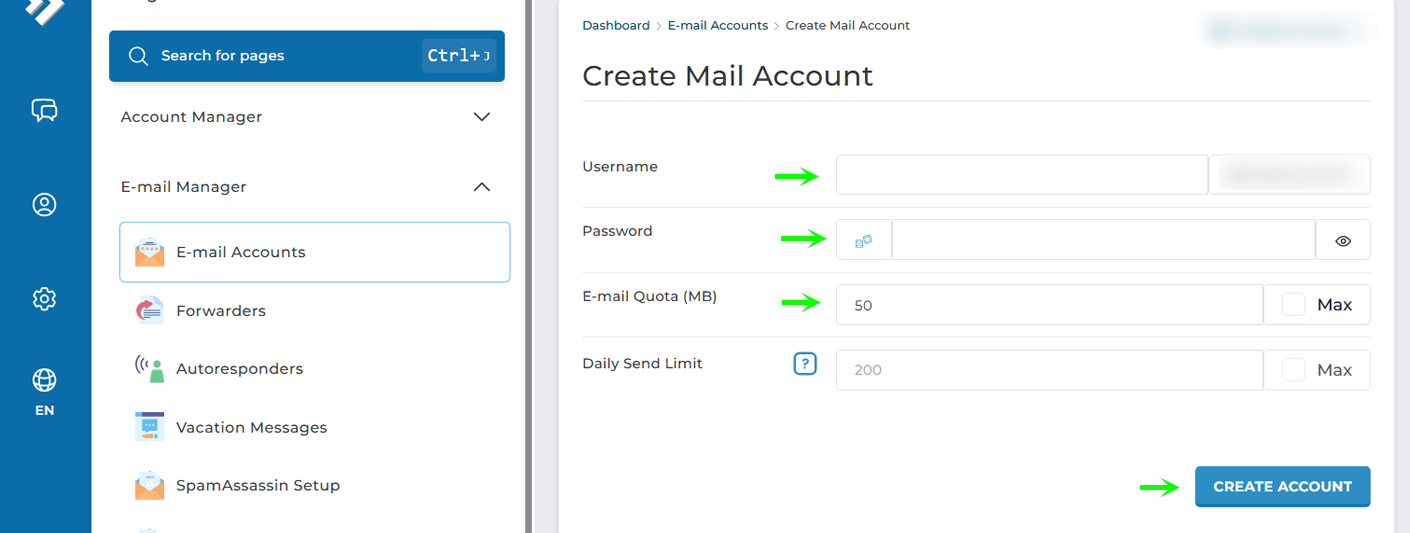
Next, on this page you fill in the details of the Username, Password, Email Quota and Daily Send Limit. Please note that you can nevert supersede the server default Send limit, but you can adjust it lower in case you want the account not to consume more than certain amount. Then simply click Create Account.
Account Created
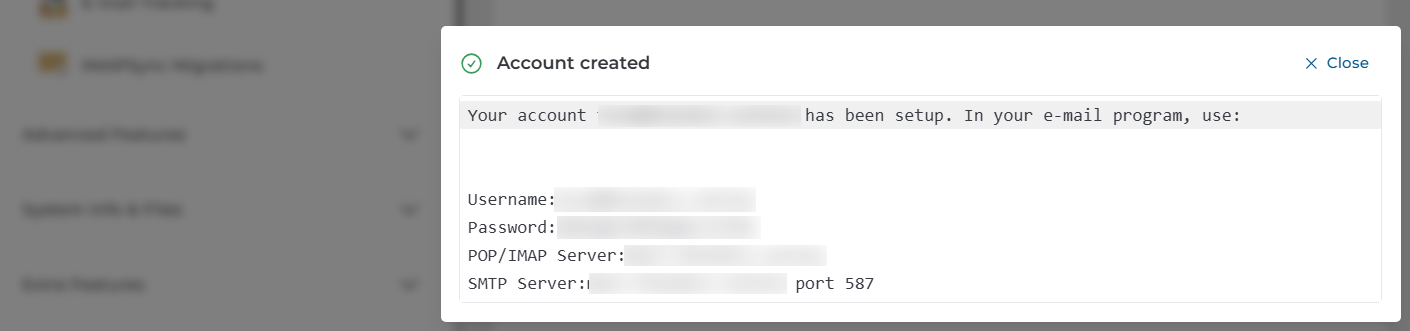
Finally, If everything was successful, you will be greeted with a dialog box that states the account was created and all the information you require to setup your POP/IMAP information.
Download Apple iOS, iPadOS, Mac Configuration
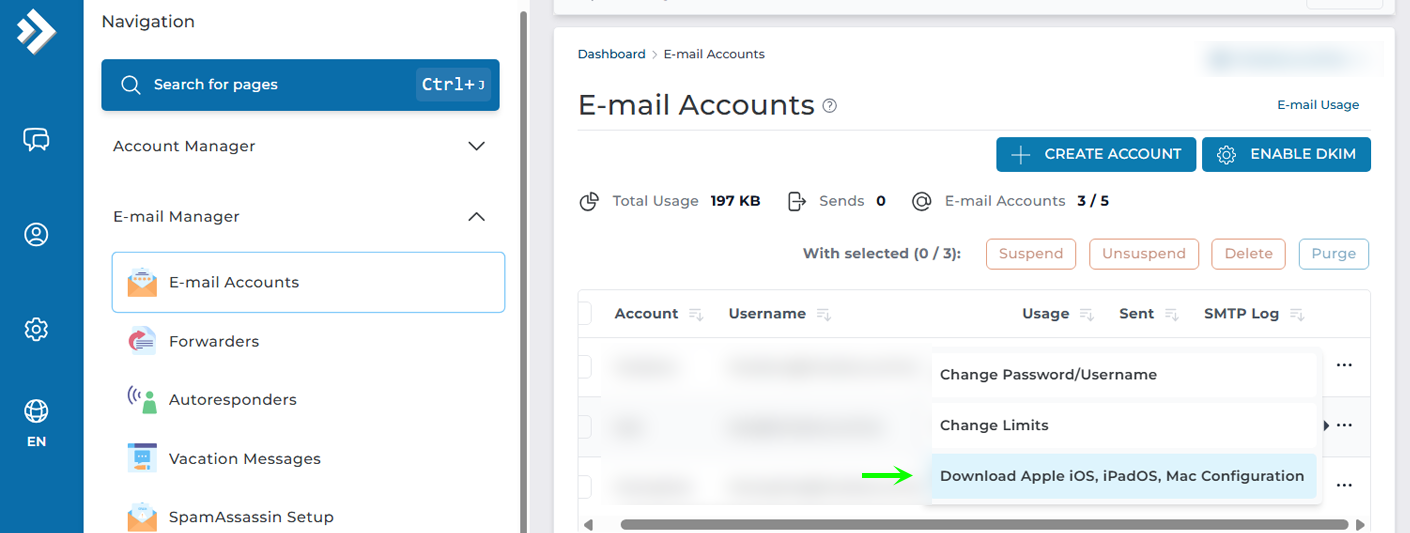
Now that you have setup your email account you can either take the information shown above in the screenshot, and install it manually in your Thunderbird, Outlook or any other mail application or if you are on mobile such as iPhone you can simply download the configuration by clicking the 3 dots, and then Download it and open the configuration. It will setup automatically.
That is it. Now you know how to create and delete email accounts in your hosting panel as needed.
Frequently Asked Questions
Can I raise my email send limit above the server default? No. The server default is the ceiling, so you can’t set an account higher than that. You can set it lower, though. Do this when you want to cap how much a specific account sends.
How do I set up my email on Outlook or Thunderbird? Use the POP/IMAP details from the account created dialog. Enter the server, port, username, and password into your mail app. Then your client connects and starts syncing your mail. Is there an easier way to set up email on my iPhone? Yes. On the account screen, click the three dots and download the configuration profile. Then open the file on your device. It sets up the account automatically, so you skip entering the settings by hand.
Good to Know You can adjust the email quota and daily send limit to suit each account. A quota keeps one mailbox from filling your whole allowance, so it’s worth setting for shared hosting. Keep in mind that if a mailbox hits its quota, it stops receiving new mail until you free up space or raise the limit. For accounts that only need to receive, set a low send limit to reduce abuse risk if the password ever leaks. Run into any issues? Open a support ticket through the client portal and our team will help you.