 Shared Hosting
 WordPress Hosting
 VPS Hosting
 Dedicated Servers
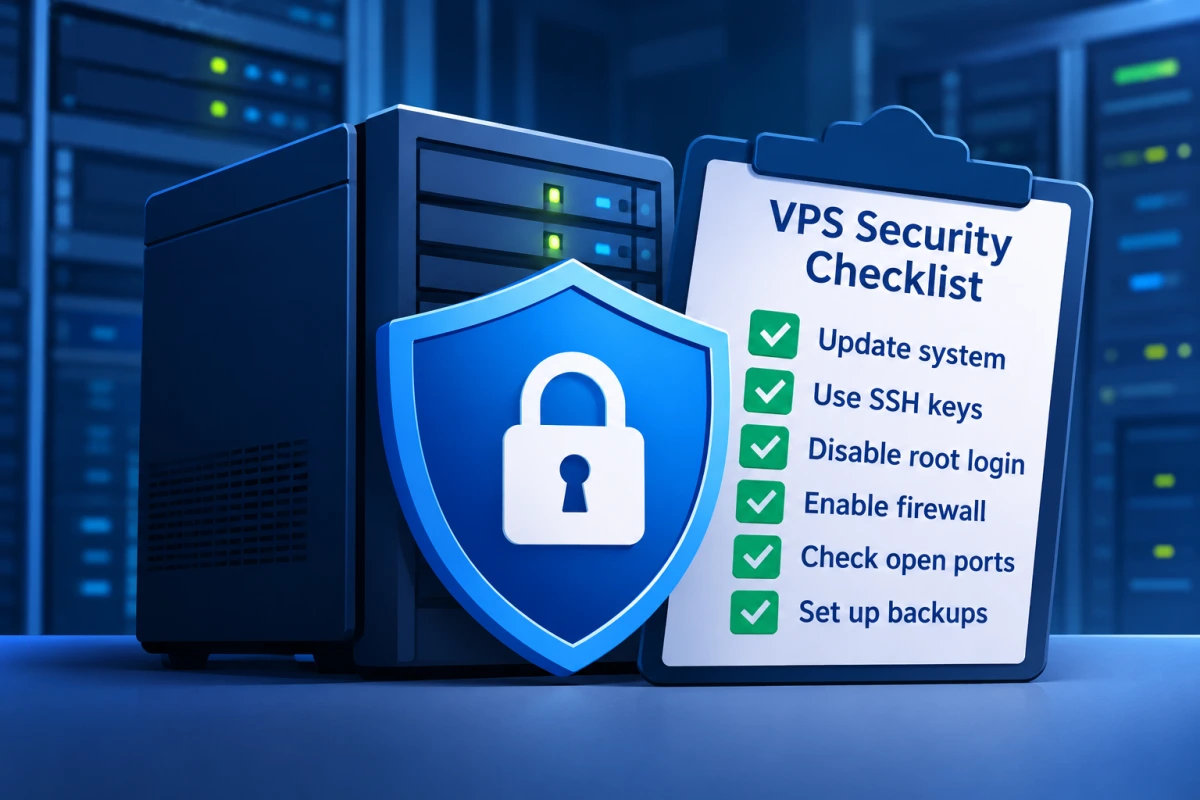
VPS security is mostly decided in the first hour. A new server gets a public IP address, and automated scanners start trying logins on it long before anyone visits your website. The usual way in is not clever: a password login, a missed update, or a service left open to the internet that should never have been reachable.
This VPS security checklist is for a fresh Debian or Ubuntu server: what to do, in what order, and the two traps that quietly undo the most important steps. Every command is ready to copy. It assumes you can log in over SSH as a user with sudo rights.
The short version
Update the system and switch on automatic security updates. Log in with an SSH key, turn off password and root logins, and check that the change took effect, because a cloud-init file can silently override it. Turn on a firewall that allows only what you run, and remember that Docker's published ports go around it. Keep backups off the server. Before you start, know how to reach your server if SSH stops working.
Who handles VPS security: you or your host?
On a VPS, the provider looks after the physical server, the virtualization layer and the network. Everything inside your virtual machine, including the operating system, its updates and every service you install, is yours to maintain. That is the trade you make for root access. On shared hosting the provider patches the server for you; on a VPS nobody does unless you do. If you want to know what the provider underneath can and cannot reach, our guide to whether your hosting provider can see your data covers it.
Before you start: keep a way back in
Several steps below change how you log in, and one typo can lock you out. Two habits prevent that:
- Keep your current SSH session open while you make changes, and test every change from a second terminal.
- Know where your provider's browser console is. It connects to the server's screen directly, so it works even when SSH does not. On our VPS plans it is the noVNC console on your service page in the client area.
A VPS security checklist for the first hour
1. Update everything and switch on automatic security updates
sudo apt update && sudo apt full-upgrade -y
sudo apt install unattended-upgrades
sudo dpkg-reconfigure --priority=low unattended-upgrades
Answer yes when asked. The --priority=low part matters on Debian: the installer can leave automatic updates switched off, and without that flag the command may finish without asking you anything. Ubuntu server images normally have automatic updates on already, so running these lines there does no harm. Which updates it installs is set in /etc/apt/apt.conf.d/50unattended-upgrades: on Ubuntu the default is security updates, and on Debian it is security updates plus stable point releases. Some updates, such as a new kernel, take effect only after a reboot, so reboot after a large upgrade.
2. Work as a normal user with sudo, not as root
Day-to-day work should happen as a normal user that uses sudo when needed. On our Cloud VPS this is done for you: the Root Access Credentials in your welcome email are for a named user, such as cloudvps123, that uses sudo. On a server where you only have root, create a user:
adduser alice
usermod -aG sudo alice
Log in as that user from a new terminal and run sudo whoami. If it prints root, the user is set up.
3. Log in with an SSH key
On your own computer, create a key and copy it to the server:
ssh-keygen -t ed25519
ssh-copy-id [email protected]
Set a passphrase when ssh-keygen asks for one. Then log in from a new terminal with ssh [email protected]. If it lets you in without asking for the server password, the key works. Windows includes ssh-keygen but not ssh-copy-id, so on Windows paste the contents of your .pub file into ~/.ssh/authorized_keys on the server instead.
4. Turn off password and root logins, then check it worked Trap 1
This step matters most for VPS security, and it is the one most often done wrong. Do not edit the main SSH config file. Create a new file instead:
sudo nano /etc/ssh/sshd_config.d/00-hardening.confPut these three lines in it and save:
PasswordAuthentication no
KbdInteractiveAuthentication no
PermitRootLogin no
Why a new file starting with 00? On current Debian and Ubuntu, the main /etc/ssh/sshd_config loads the files in /etc/ssh/sshd_config.d/ first, and SSH keeps the first value it finds for each setting. Cloud images and the Ubuntu installer often leave a file there called 50-cloud-init.conf that contains PasswordAuthentication yes. If you only edit the main file, that line wins, and password logins stay on with no error to warn you. A file whose name starts with 00 is read before it.
Check the configuration and apply it:
sudo sshd -t && sudo systemctl restart sshThe first command checks for errors, and the restart only runs if it passes. On Debian and Ubuntu the service is called ssh; on Rocky, Alma and other RHEL-based systems it is sshd. Now confirm what SSH is really using:
sudo sshd -T | grep -Ei 'passwordauthentication|kbdinteractiveauthentication|permitrootlogin'All three should say no. Before you close your old session, log in with your key once more from a new terminal.
5. Turn on a firewall Trap 2
Allow what you run and deny every other incoming connection. Ubuntu ships with ufw installed but switched off; on Debian, install it first. Allow SSH before you enable it, or you will cut off your own session:
sudo apt install ufw
sudo ufw default deny incoming
sudo ufw default allow outgoing
sudo ufw allow 22/tcp
sudo ufw enable
sudo ufw status verbose
For a web server, add sudo ufw allow 80,443/tcp. Open nothing else unless the internet needs to reach it.
If you run Docker: with Docker's default firewall setup, ports you publish with -p go around ufw. Docker's own documentation says traffic to a published container port is diverted before it reaches ufw's rules, so a database container published on 5432 is open to the internet even though ufw status says otherwise. Publish internal services on localhost instead, for example -p 127.0.0.1:5432:5432, and put a reverse proxy in front of anything that must be public. For finer control, Docker documents a DOCKER-USER chain for your own rules when it uses its default iptables backend. The newer nftables backend, still experimental in Docker 29, has no such chain.
6. Check what is listening
sudo ss -tulpnThis lists every port a program is listening on. Anything bound to 0.0.0.0, [::] or your public IP can be reached from outside unless the firewall blocks it. Databases, Redis, admin panels and dashboards should listen on 127.0.0.1. If you do not recognise a service, find out what installed it before you leave it running. If you run Docker, also run docker ps: published container ports appear in its PORTS column, and depending on Docker's settings they may not show up in ss at all.
7. Add fail2ban Optional
Once password logins are off, nobody can guess their way in over SSH, so for SSH fail2ban mainly cuts the noise in your logs. It can also protect other logins, such as a web admin page, but each service needs its own jail and a log that fail2ban can read. The setup below covers SSH only:
sudo apt install fail2ban python3-systemd
sudo nano /etc/fail2ban/jail.local
Put this in the file and save:
[sshd]
enabled = true
backend = systemd
sudo systemctl restart fail2ban
sudo fail2ban-client status sshdThe backend = systemd line matters on Debian. New Debian 12 installs log to the systemd journal instead of /var/log/auth.log, and without that line fail2ban can refuse to start with the error "Have not found any log file for sshd jail".
8. Do not become a spam source
Servers that get taken over are often used to send spam, which puts their IP address on blocklists such as Spamhaus and can take your own mail down with it. On our VPS plans, outbound port 25 is closed by default, and support can open it on request depending on your plan and billing cycle. If you run a mail server, make sure it only relays mail for your own users.
9. Keep backups off the server
Backups are the part of VPS security most people skip. A backup stored on the same VPS is lost along with it. Copy backups to another machine or storage you control, and test a restore at least once. If the server is ever compromised, a clean backup is what lets you rebuild instead of guessing what an attacker changed. Our self-hosted password manager guide includes a backup script you can adapt.
How to tell if something is wrong
A few quick checks catch most VPS security problems early:
- Successful logins:
sudo journalctl -u ssh --since today | grep Acceptedshows who logged in today and from which IP address. - CPU use: run
top. Cryptocurrency miners are a common payload and usually show up as an unfamiliar process using all the CPU. - SSH keys: check
~/.ssh/authorized_keysfor your user and for root. Every line should be a key you added. - Users:
awk -F: '$3 >= 1000 {print $1}' /etc/passwdlists the normal accounts. Apart fromnobody, you should recognise every name. - Scheduled jobs:
crontab -landsudo crontab -l. Attackers often add a cron job to bring their software back after a reboot.
If you find signs of a break-in, do not try to clean the server. Rebuild it from a fresh image, restore your data from a backup taken before the break-in, and change every password and key that was stored on it.
Running it on Packetra
Our anonymous VPS plans are full KVM virtual machines with root access, in Finland from EUR 9.90 a month and in Switzerland from EUR 13.90. Each one has its own kernel, so everything in this guide, Docker included, works the same as on your own hardware. Signup takes an email address and a password, and you can pay in Bitcoin or Monero through our own BTCPay Server. Once the server is locked down, our list of things you can host on a VPS has ideas for what to run on it.
VPS security FAQ
Is a VPS less secure than shared hosting?
Not by design. A VPS gives you your own kernel and keeps you apart from other customers, but VPS security depends on you: nobody patches it for you. Shared hosting is safer for people who will not maintain a server. Our comparison of VPS and shared hosting covers the rest of the trade-off.
Is changing the SSH port worth it?
It cuts the noise in your logs, but it is not a security control on its own: scanners find a moved SSH port without much trouble. Key-only logins do the real work. If you change the port anyway, open the new port in the firewall before you switch, and note that Ubuntu 22.10 and later start SSH through systemd socket activation, which changes how the port is set.
Do I still need fail2ban if I only use SSH keys?
Not for SSH itself, because keys cannot be guessed. It is still useful for anything else that takes a password, such as a web login, once you set up a jail for that service.
What if I lock myself out?
Use your provider's browser console, which connects to the server's screen rather than over SSH. On our plans that is the noVNC console in the client area. Log in there, undo the last change, and test again.
Is this enough to run a server for other people?
It is a solid baseline for a personal server. If you host other people's data or run a public service, add monitoring, regular security reviews and the hardening guides for each piece of software you run.
Sources
- Debian Wiki: Periodic updates (unattended-upgrades)
- Ubuntu Server documentation: Firewalls (ufw)
- Docker documentation: Packet filtering and firewalls (Docker and ufw, DOCKER-USER)
- Docker documentation: Docker with nftables (no DOCKER-USER chain)
- Launchpad bug 2088207: cloud-init enables SSH password authentication in an unexpected config file
- Launchpad bug 1873528: sshd_config.d overrides and the "first obtained value" rule
- fail2ban issue 3645: fail2ban does not start on Debian 12 without a log file
Last reviewed: 25 November 2026
Research note: Commands are for Debian and Ubuntu with apt and systemd. Other distributions use different package and service names. Defaults change between releases, so check the documentation for your exact version, and test every change from a second session before closing the first.