You can manage your VPS easily through the Packetra client portal. In this guide, we will walk you through how to rebuild your vps server with a template.
This article is only applicable to those who have an account with Packetra and it assumes that you are already logged into the portal. Don’t have a VPS yet? Check out our CloudVPS Plans. If you already have one feel free to login to follow the guide below
Navigate to your VPS Service
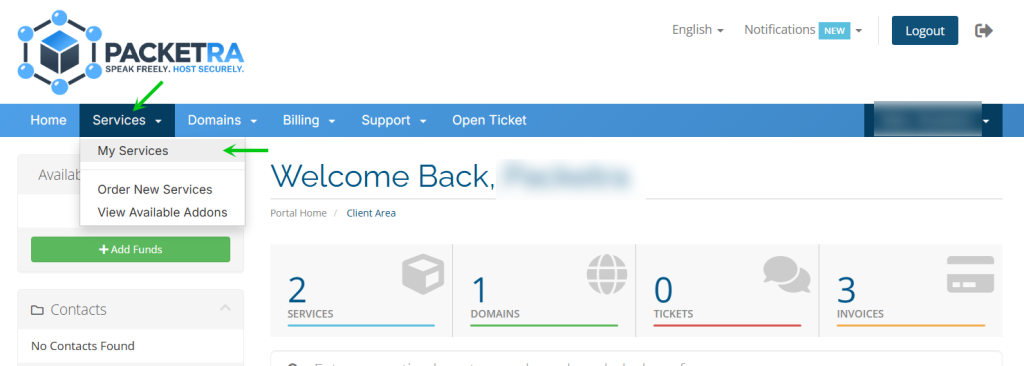
First click the Services tab in the top navigation, then select My Services from the dropdown menu.
Select the VPS to Rebuild
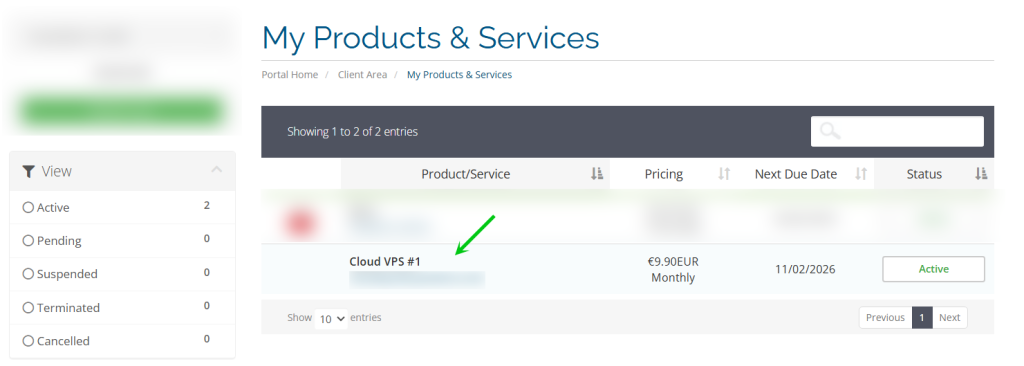
Next, find the active vps you wish to rebuild from the My Products & Services and click on it to open the service details page.
Start the VPS Reinstallation
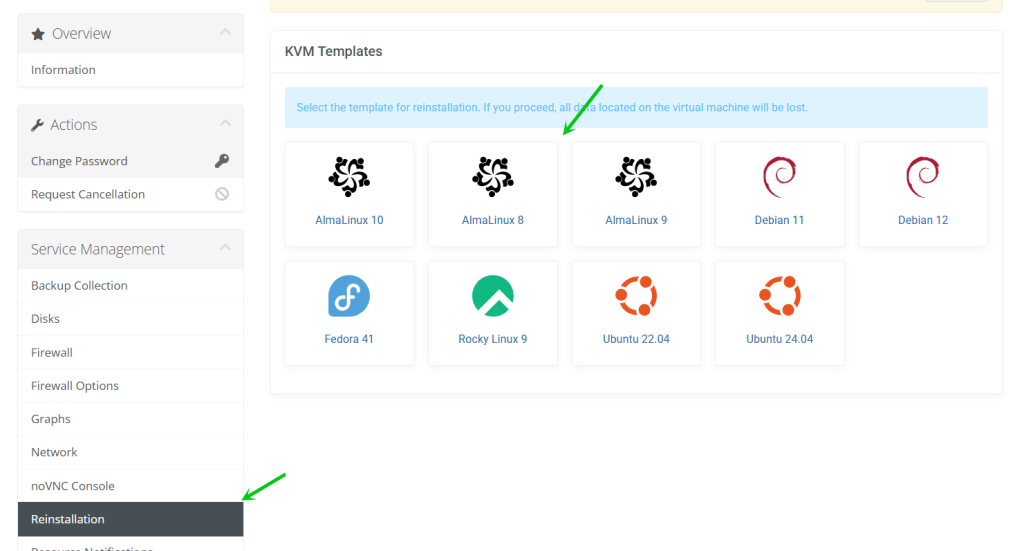
Finally, click the Reinstallation button on the left side panel to activate the KVM Templates section for the VPS you wish to rebuild as shown in the screenshot below.
Choose a Template and Rebuild Your VPS
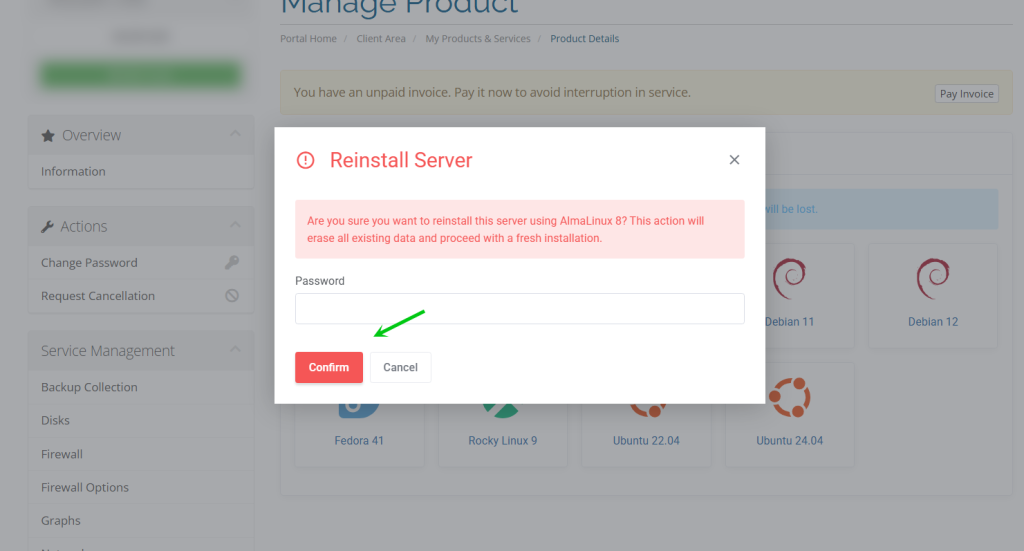
Finally, you click the template of your choosing and rebuild your vps, a dialog like below will appear asking you to set your server new password.
Reinstallation completely wipes your server and starts fresh from the selected template. Make sure to back up any important data before proceeding. We strongly recommend you enable Two-Factor Authentication to protect your account at all times.
Frequently Asked Questions
How long does a reinstallation take? A reinstallation typically completes within 5-10 minutes depending on the template size. Your server will be unavailable during this process.
Can I change my operating system during reinstallation? Yes, you can select any available template during reinstallation. This is the easiest way to switch between operating systems.
Good to Know Reinstallation is queued and will begin shortly after you confirm your template choice. Additionally, your server’s IP address will remain the same after reinstallation. Only the operating system and data on disk will change. If you run into any issues during reinstallation, open a support ticket through the client portal and our team will assist you.