
You can manage subdomain records for your domain easily through the cPanel portal. In this guide, we will walk you through how to create a subdomain for your domain in cPanel for your Packetra hosting.
Fill in Details to Create cPanel Subdomain
First, under the Domains section, click the Domains button (globe icon) for this is where we will create subdomain record for the hosted domain.
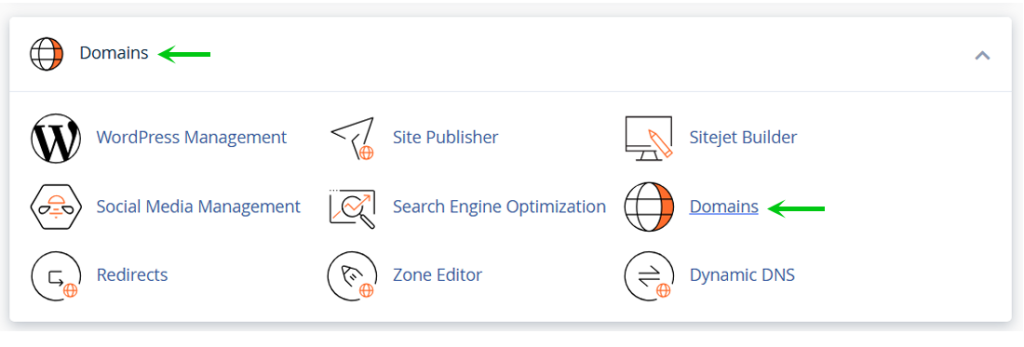
Create cPanel Subdomain
Next, you want to click the blue Create A New Domain. This is where we create the subdomain record for the main domain (also this is where you can add another domain to your account if the package allows).
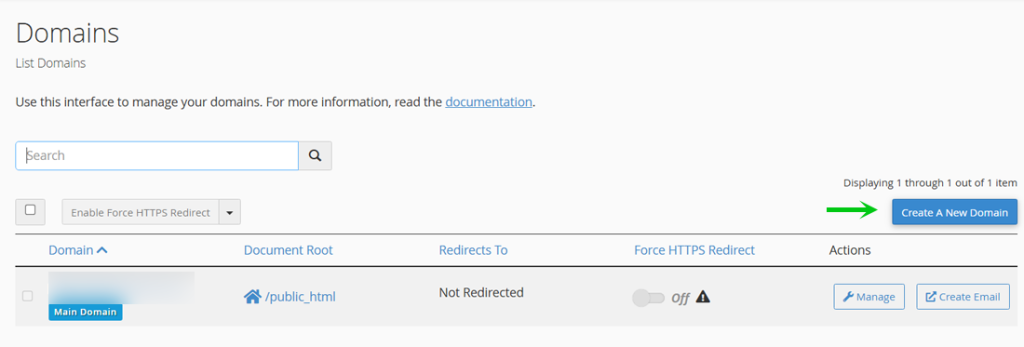
Fill in Details for Subdomain Record
Next, you select Registered Domain as this article assumes you already have a registered domain linked to this account. You will type in your Domain field your <subdomain>.yourdomain. If you type anything else but your main domain it is considered as additional domain and not a subdomain record. Lastly you can either share the public_html folder for your subdomain or host it outside in your home so the path becomes /home/<username>/<subdomain>. We suggest that you leave it outside your public_html to prevent traversal to the directory directly. When you are ready you click the blue Submit to create the record.
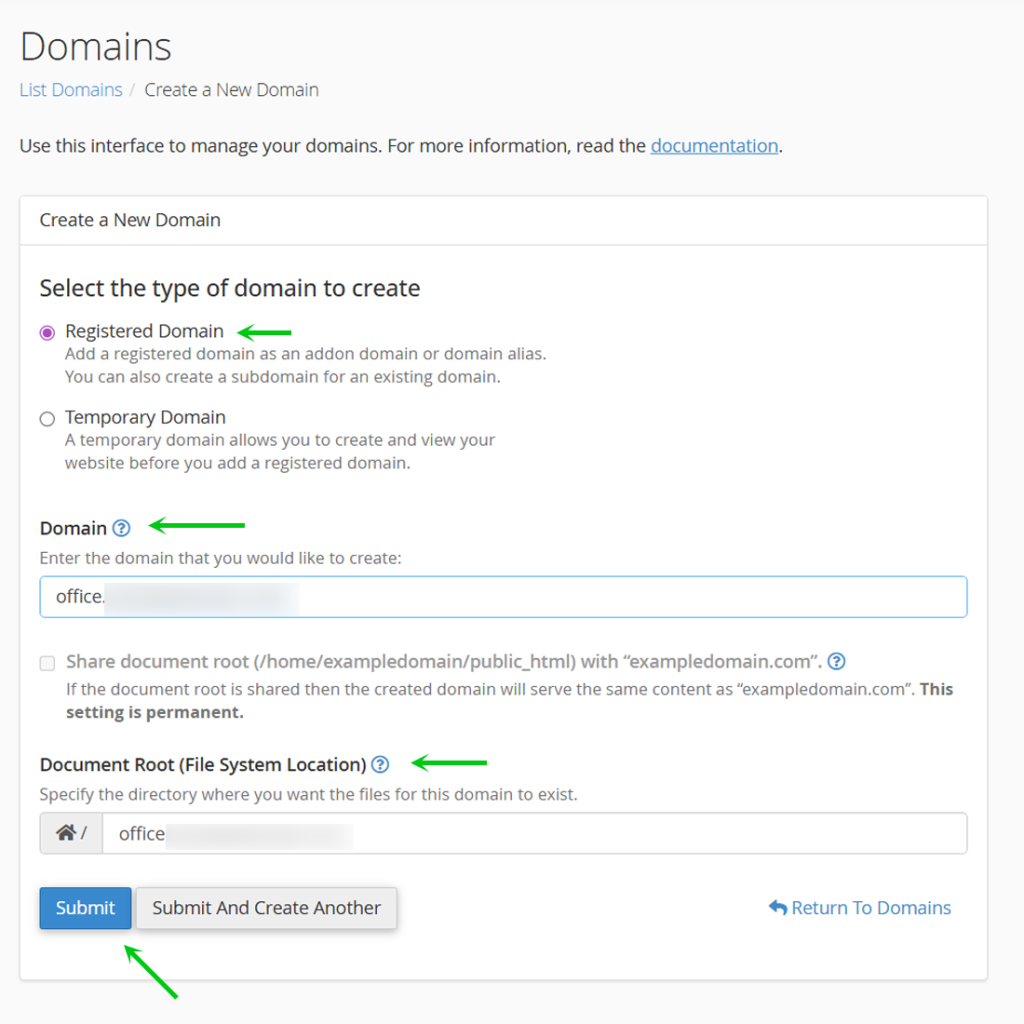
Successfully Created Subdomain Record
Finally, if subdomain record was successful you will see a green confirmation box and you will see your subdomain appear in the list underneath your hosted domain.
If you are using a 3rd Party DNS service such as CloudFlare you need to create a matching A record to the subdomain you just created.
If you are using our Nameservers then the subdomain is automatically created and you don’t have to do anything else.
You can now visit your https://<subdomain>.<yourdomain> to view your new subdomain.
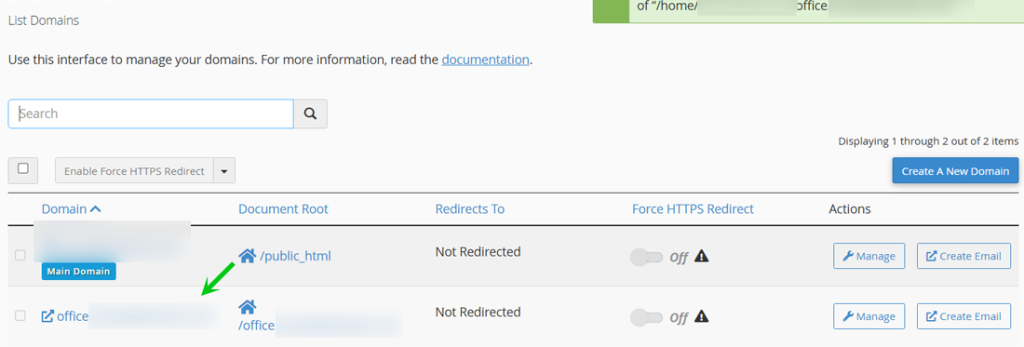
That is it, now you know how create a subdomain for your domain in your cPanel through Packetra hosting.