
How to cPanel – Install SSL Certificate

Contents

    This article is only applicable to those who have an account with Packetra and it assumes that you are already logged into the cPanel. Don’t have a hosting account yet? Check out our Shared Hosting or WordPress Hosting. If you already have one feel free to login to your portal, click the cPanel hosting service and use one of the quick actions to log onto your cPanel to follow the guide below.

    Install Let’s Encrypt Auto SSL (Free Certificate)

    Find the cPanel Security Section [ SSL/TLS Status ]

    First, under the Security section, click SSL/TLS Status as this is the page we will be running the AutoSSL from which will install the free cPanel ssl certificate
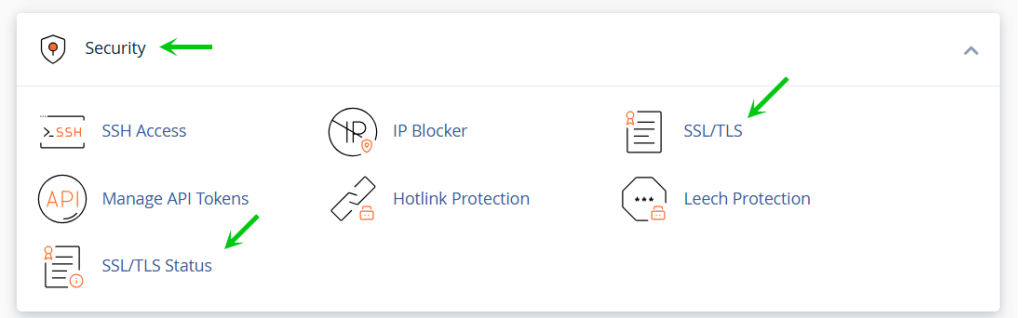
    cPanel security section, click the SSL/TLS Status button

    SSL/TLS Status

    Next, you select the domain that you wish to install the ssl certificate to by selecting the checkbox next to the red lock (assuming there is no ssl installed prior). Once you are done you click the blue Run AutoSSL (If you have proper nameservers set and the domain resolves, this should be successful).
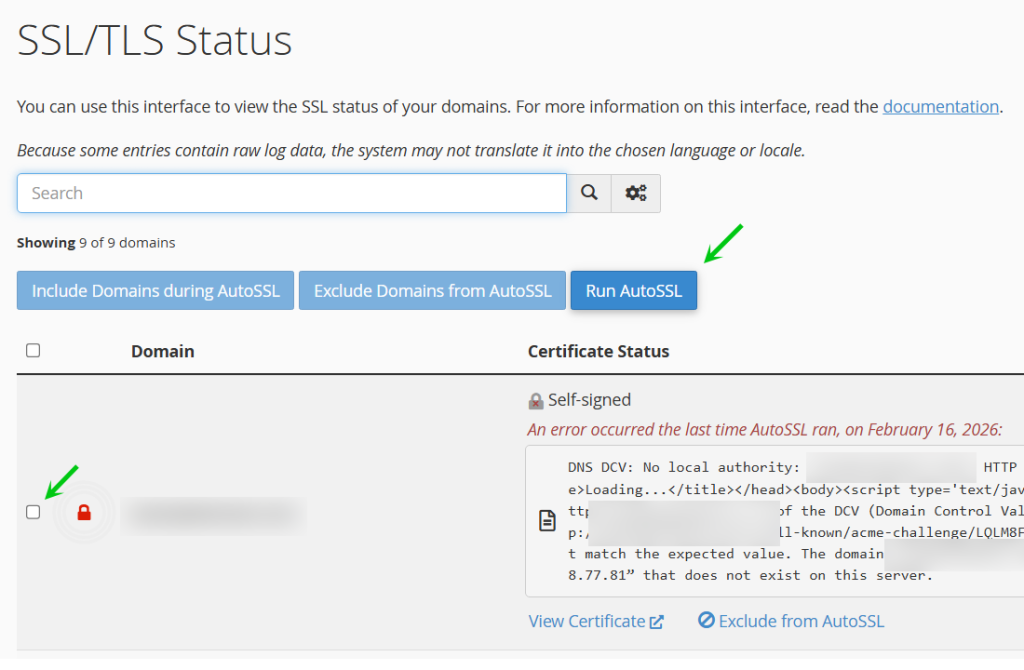
    Select checkbox next to the domain in your cPanel to install the ssl certificate, then click the Run AutoSSL button

    This may taka a while, during the progress the button will show as AutoSSL is in progress.. you can then refresh this page after approximately 30 seconds.
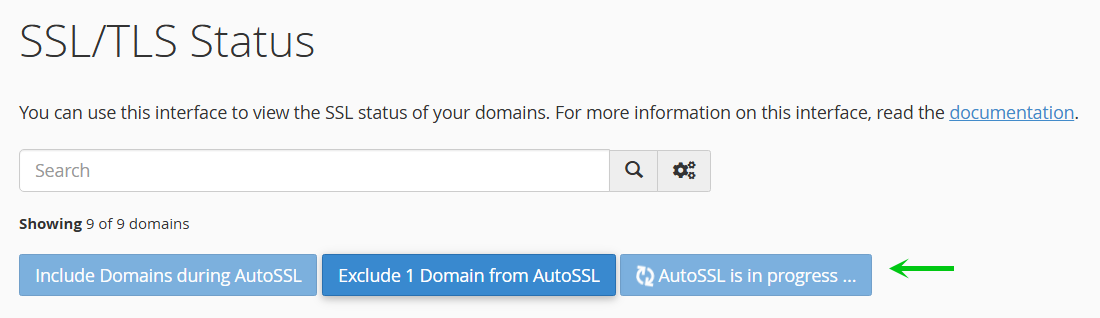
    The Run AutoSSL button changes to in progress

    Your Free cPanel SSL Certificate is Installed

    Finally, you will see a green padlock next to your domain showing that the domain expires at a future date. Please note that other subdomains may not exist and will remain red but as long as the main domain is green the installation is a success.
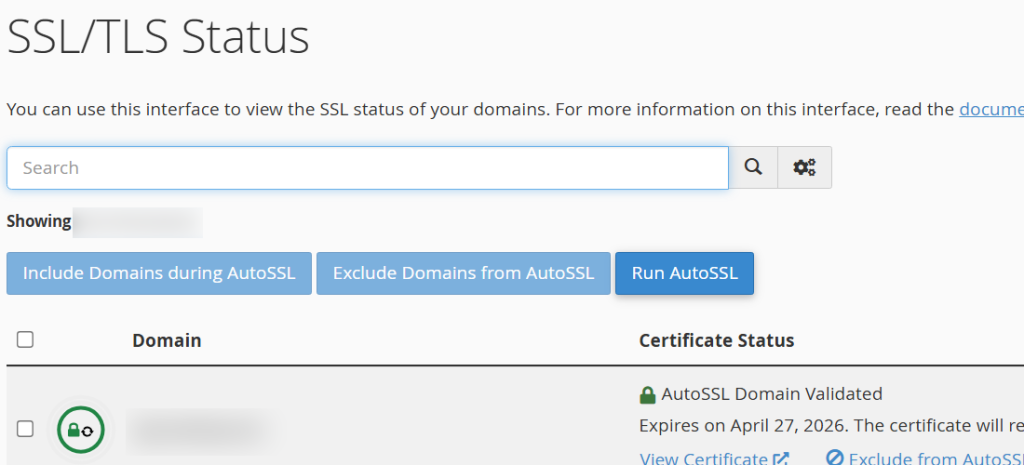
    AutoSSL is now successful, the lock is green and it will show when it expires.

    Install Manual Certificate (Paid Certificate)

    Find the SSL/TLS Manual Install Section

    First, under the Security section, click SSL/TLS as this is the page we need to install manually a certificate you may have bought with us or elsewhere.

    cPanel security section, click the SSL/TLS button

    Find the SSL/TLS Management Section

    Next, we want to click the Manage SSL Sites to access the page where we install the cpanel ssl certificate and key.
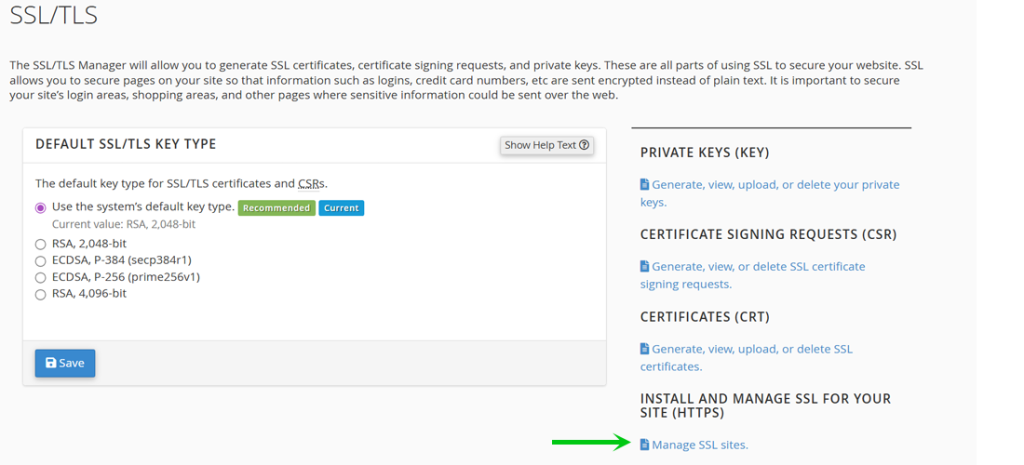
    Click Manage SSL Sites within the SSL/TLS section to goto the domains you wish to install SSL certificate for

    Fill in the Certificate Details

    Next, we want to select the Domain we are installing it for, and then we need to paste the certificate code to the CRT field, followed by the private key you received when you setup the certificate. You do not have to fill in the CABUNDLE as it does auto-fill by itself. When you have added all the information you received regarding your certificate you can click the blue Install Certificate.
    (This will replace any certificate that exists prior such as Let’s Encrypt.)
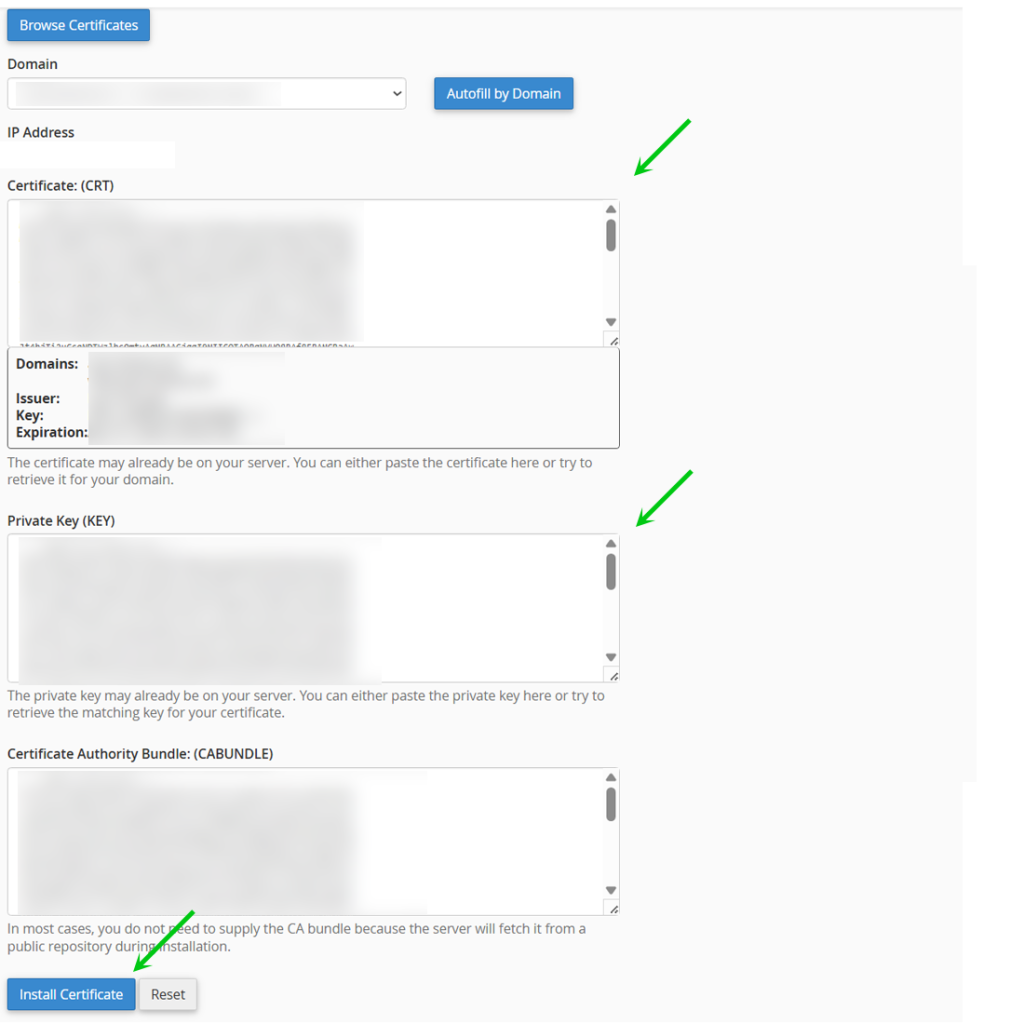
    Fill in all details such as CRT, KEY and domain, then you can click the Install Certificate button to install it.

    That is it, now you know how to install both free ssl certificates as well as a paid one in your cPanel through Packetra hosting.

    Frequently Asked Questions

    What is the difference between AutoSSL and a paid certificate?
    AutoSSL installs a free Let’s Encrypt certificate that renews automatically every 90 days. A paid certificate such as RapidSSL or Sectigo offers longer validity, warranty coverage and sometimes a higher level of trust for e-commerce sites.

    Do I need to install SSL on every subdomain?
    AutoSSL will attempt to cover your main domain and common subdomains like www and mail. If you have custom subdomains that show a red lock, you can select them individually and run AutoSSL again.

    Will installing a paid certificate remove my Let’s Encrypt?

    Yes. Installing a manual certificate replaces any existing certificate on that domain, including Let’s Encrypt.

    Good to Know
    AutoSSL certificates renew automatically so you do not need to do anything after the initial install. However, if your domain nameservers are not pointing to your Packetra hosting server, AutoSSL will fail because it cannot verify domain ownership. For paid certificates, keep a copy of your private key somewhere safe as you cannot retrieve it from cPanel after installation. If your paid certificate is approaching expiry, you will need to purchase a renewal and repeat the manual installation process. If you run into any issues, open a support ticket through the client portal and our team will assist you.

    Updated on February 16, 2026
    Was this article helpful?