You can manage your php version for your domain easily through the cPanel portal. In this guide, we will walk you through how to change your PHP version in cPanel for your Packetra hosting.
This article is only applicable to those who have an account with Packetra and it assumes that you are already logged into the cPanel. Don’t have a hosting account yet? Check out our Shared Hosting or WordPress Hosting. If you already have one feel free to login to your portal, click the cPanel hosting service and use one of the quick actions to log onto your cPanel to follow the guide below.
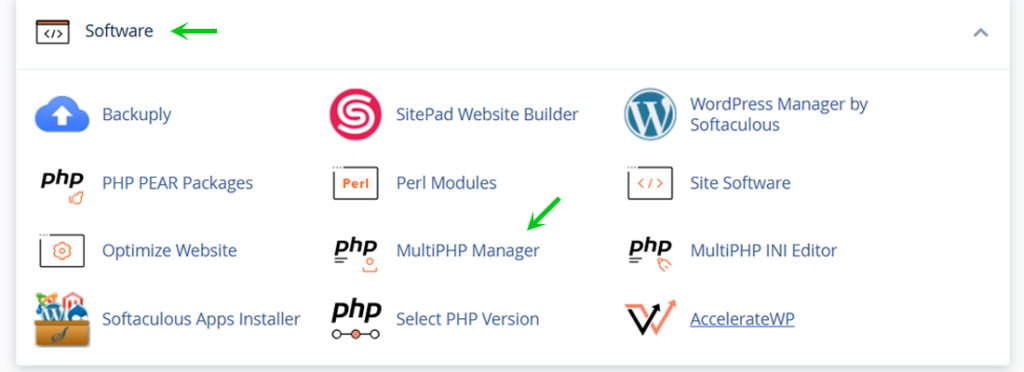
Find the Software Section in cPanel
First, under the Software section, click the MultiPHP Manager button for this is where we will change either our domain/subdomain php version as we can decide which version of PHP runs what.
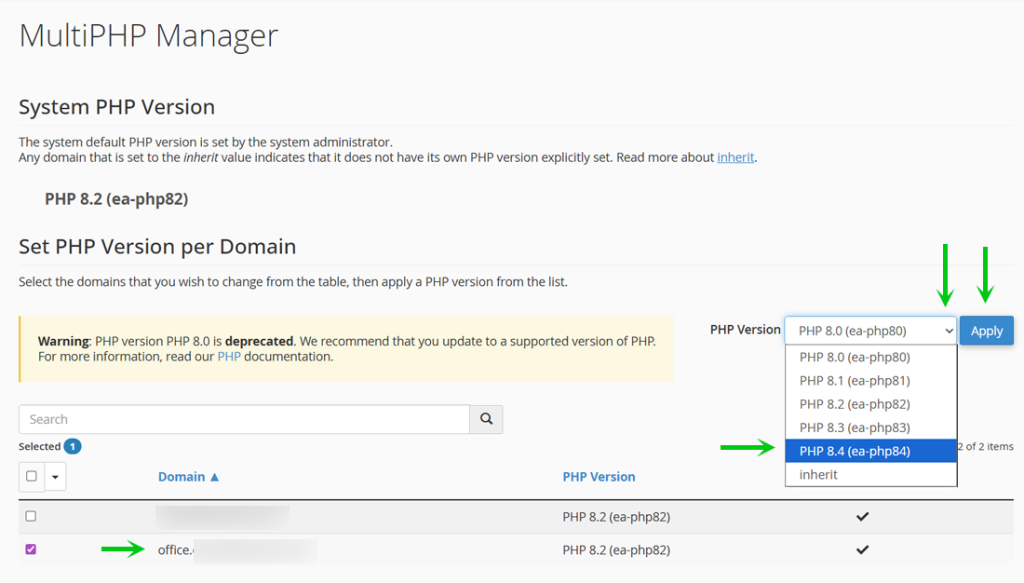
Change PHP Version
Next, you want to put a checkmark into the domain or subdomain you wish to change the PHP version for. In the screenshot below we can see the default system PHP version is PHP 8.2, we want our subdomain to use php8.4 so we will select the record, click the PHP Version dropdown and select PHP 8.4 (ea-php84). When we have done this we will click the blue Apply button to apply our settings.
Successfully Changed the PHP Version
Finally, if the action succeeds without issues, you will see the domain PHP Version show the php version you selected.
That is it, now you know how change your domain/subdomain PHP version in your cPanel through Packetra hosting.
Frequently Asked Questions
Will changing PHP version affect my website? Yes, it can. Some older plugins or themes may not be compatible with newer PHP versions. We recommend testing your website after making the change and reverting if you notice any issues.
Which PHP version should I use? We recommend using the latest stable version supported by your application. For example, WordPress currently recommends PHP 8.3 or higher. Check your application’s documentation for their recommended version. Can I set different PHP versions for different domains? PHP version per domain, so each website on your account can run a different version if needed.
Good to Know Upgrading your PHP version can improve your website’s performance and security. If something breaks after switching, you can simply go back and select the previous PHP version to restore it so you don’t need to backup before you perform this action. Additionally, if you are running WordPress, check that your theme and plugins are compatible with the new version before switching. You can test compatibility by enabling WordPress debug mode temporarily after the change. If you run into any issues, open a support ticket through the client portal and our team will assist you.