You can manage your emails easily through the cPanel portal. In this guide, we will walk you through how to create your email account within your hosting cPanel.
This article is only applicable to those who have an account with Packetra and it assumes that you are already logged into the cPanel. Don’t have a hosting account yet? Check out our Shared Hosting or WordPress Hosting. If you already have one feel free to login to your portal, click the cPanel hosting service and use one of the quick actions to log onto your cPanel to follow the guide below.
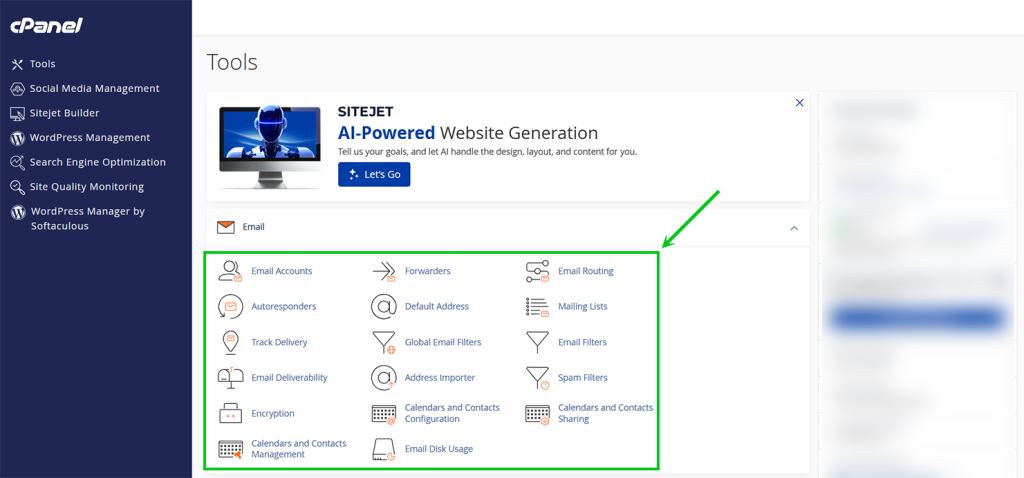
Find the Email Section
Under the Email section, click the Email Accounts.
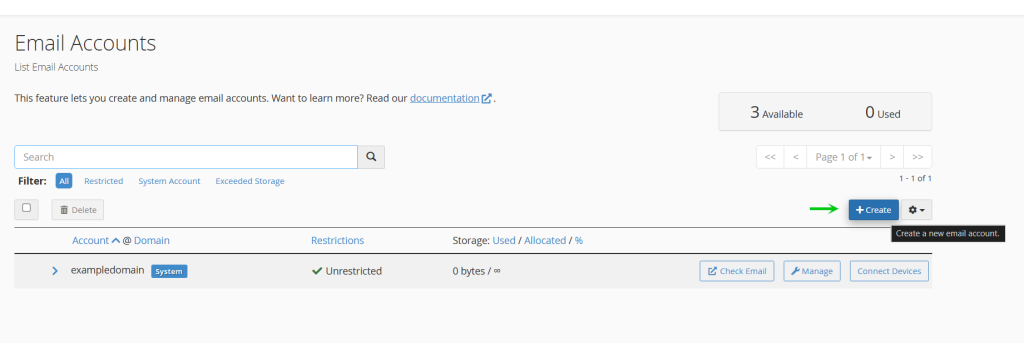
Create Email in cPanel
Next, on the Email Accounts page, you want to click the blue colored +Create button on the right
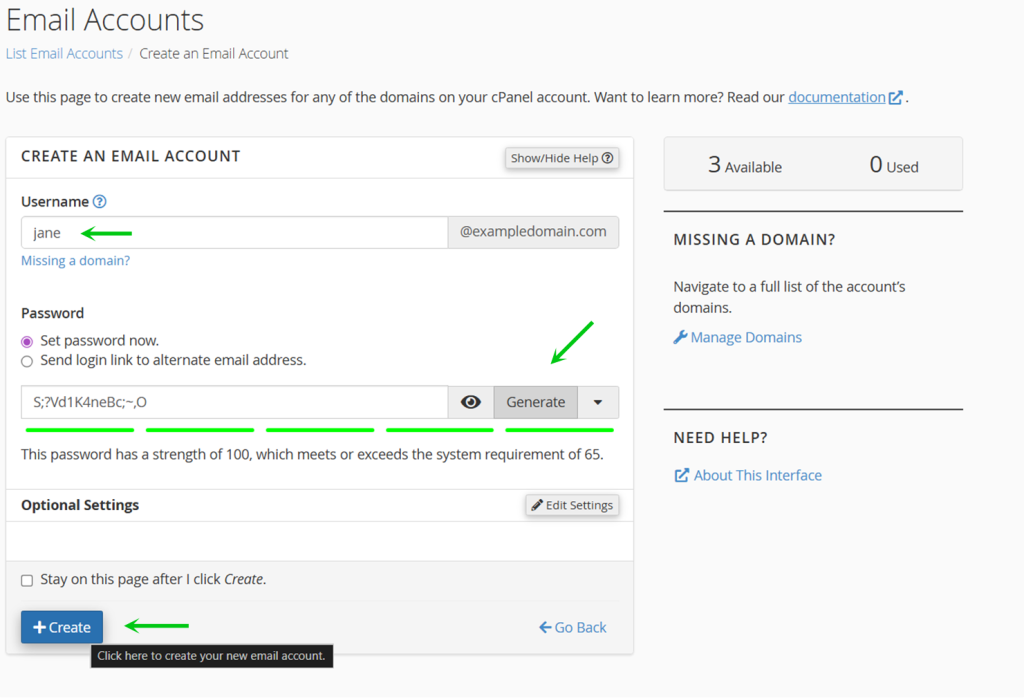
Set Username and Password
Finally, fill in the fields Username, Password and click the +Create to create the email of your choosing.
That is it, now you know how to create email in cPanel through your Packetra hosting account.
Frequently Asked Questions
Does it take effect immediately? Yes, if your domain uses the nameservers that came with your hosting account, the email works instantly. You can start sending and receiving right away.
What if I use a third-party DNS service like Cloudflare? You need to add an MX record pointing to your cPanel server hostname in your DNS provider. Without this, emails will not route to your Packetra hosting account.
How many email accounts can I create? This depends on your hosting plan. You can check your email account limit in cPanel under the Email Accounts section.
Can I access my email from a phone or mail client? Yes. You can use any mail client such as Outlook, Thunderbird, or your phone’s built-in mail app. Use the server hostname as your incoming and outgoing mail server. You can find the exact settings in cPanel under Email Accounts by clicking Connect Devices.
Good to Know Each email account uses disk space from your hosting plan, so keep an eye on mailbox sizes if you are on a smaller plan. Additionally, cPanel automatically sets up Webmail access for every email account you create. You can access it at yourdomain.com/webmail or serverhostname:2096 from any browser. We also recommend setting a strong password for every email account to protect against unauthorized access. If you run into any issues, open a support ticket through the client portal and our team will assist you.