You can manage your files easily through the cPanel portal. In this guide, we will walk you through how to use the cPanel FileManager Uploader to upload your first file.
This article is only applicable to those who have an account with Packetra and it assumes that you are already logged into the cPanel. Don’t have a hosting account yet? Check out our Shared Hosting or WordPress Hosting. If you already have one feel free to login to your portal, click the cPanel hosting service and use one of the quick actions to log onto your cPanel to follow the guide below.
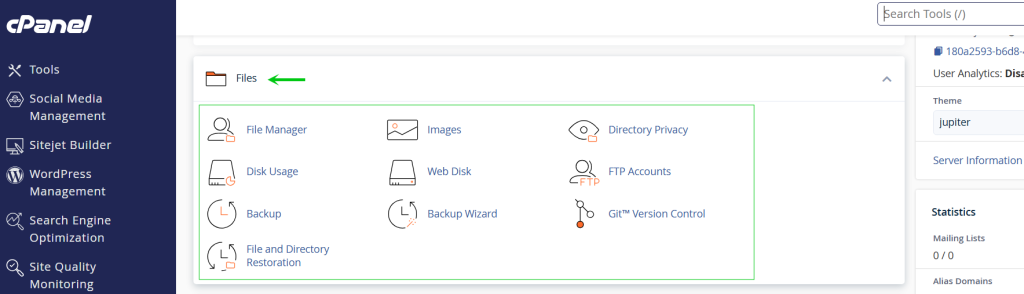
First, under the Files section, click File Manager.
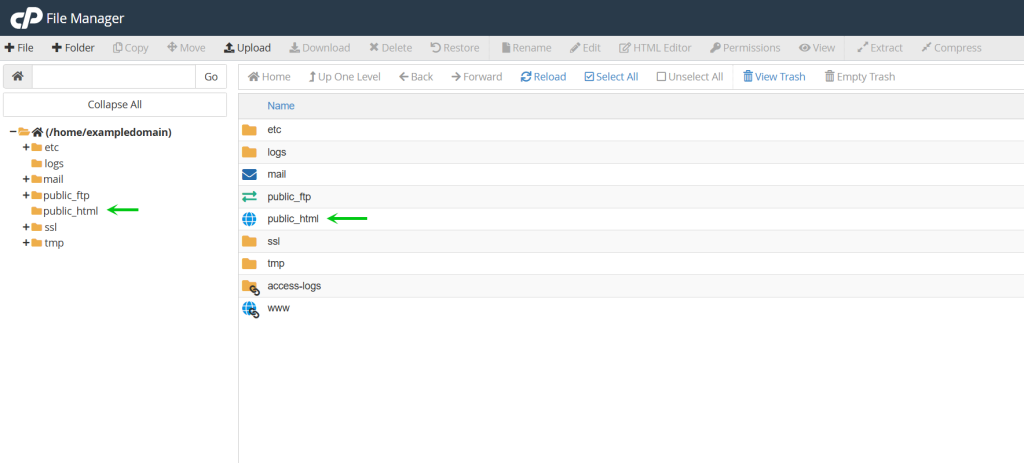
Open the public_html Folder
Next, the File Manager will open in a new tab. All your website files live inside the public_html folder. Click it to open it.
Upload Your First cPanel File
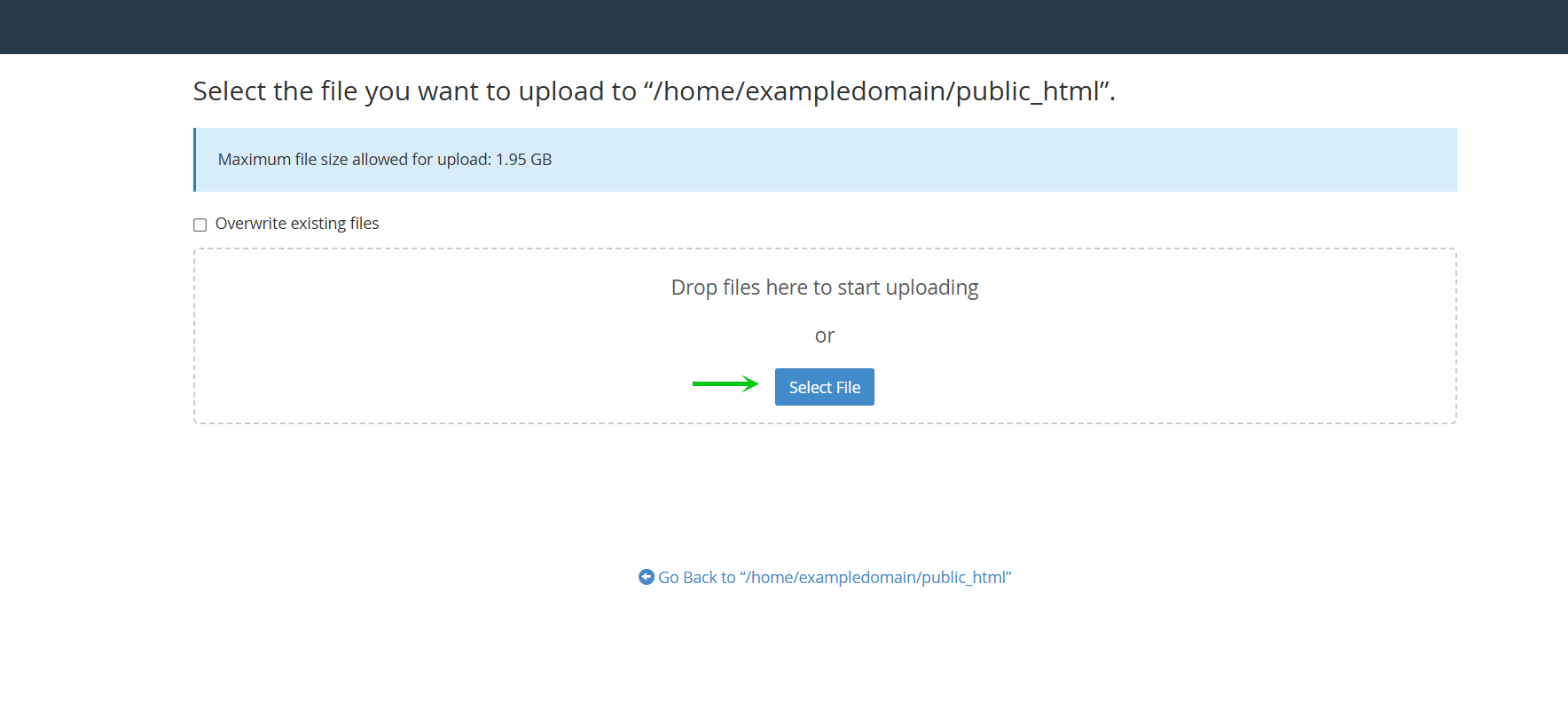
Next, click the Upload button at the top in the toolbar. You will see a screen like below stating you are in /home/<domain>/public_html, now we are ready to click the Select File to upload our file
Your cPanel File Upload is Complete
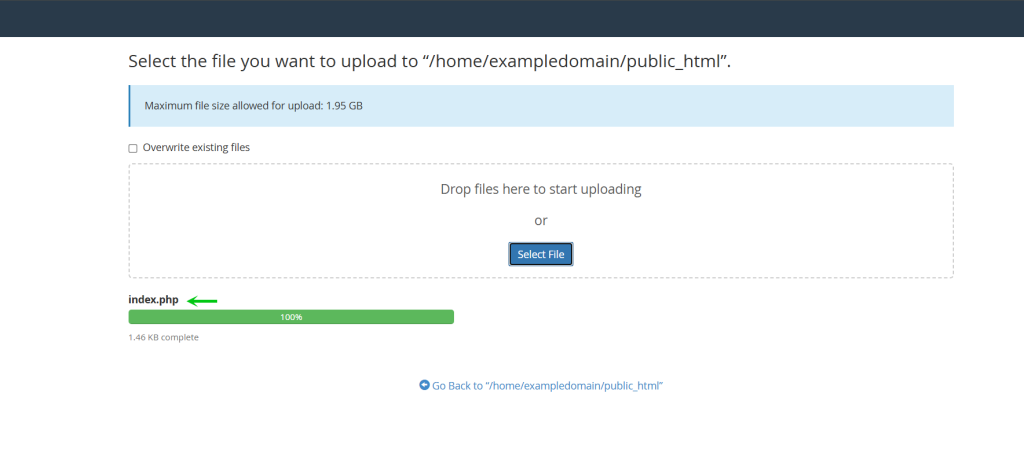
Next, We select our file, I will be using a index.php. You select the file and click Open in your browse window, it will then start the upload until it reaches 100%.
File Ready to be Viewed
Finally, we can now goto <yourdomain> to view the page. If you uploaded something else than index in the name (ex: gallery.php), you would goto <yourdomain>/gallery.php to view the file you uploaded. This is because index is the only thing that can be found directly by viewing <yourdomain>
That is it, now you know how to perform a cPanel file upload through your Packetra hosting account.
Frequently Asked Questions
Can I upload multiple files at once? Yes. The upload page allows you to select and upload multiple files at the same time. You can also upload a ZIP archive and extract it on the server using the Extract button in the File Manager toolbar.
Is there a file size limit? Yes. The upload limit depends on your hosting plan’s PHP settings. For large files we recommend using an FTP client like FileZilla which handles big transfers more reliably.
Good to Know When uploading files with the same name as existing ones, cPanel will overwrite the old file without warning. Always double-check your file names before uploading. Additionally, if you need to upload an entire website, compress it into a ZIP file first, upload the ZIP, then use the Extract button in File Manager, this is much faster than uploading files one by one. If you run into any issues, open a support ticket through the client portal and our team will assist you.