
You can manage your emails easily through the cPanel portal. In this guide, we will walk you through how to create email forwarder within your hosting cPanel.
Find the Email Section
Under the Email section, click the Forwarders.
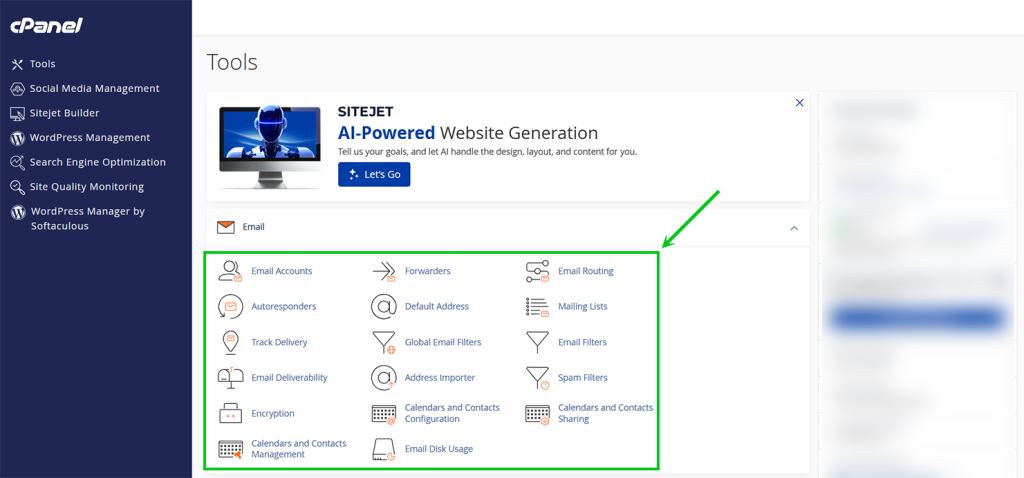
Create Email Forwarder in cPanel
Next, on the Forwarders page, you want to click the blue colored Add Forwarder button to start creating your email forwarder.
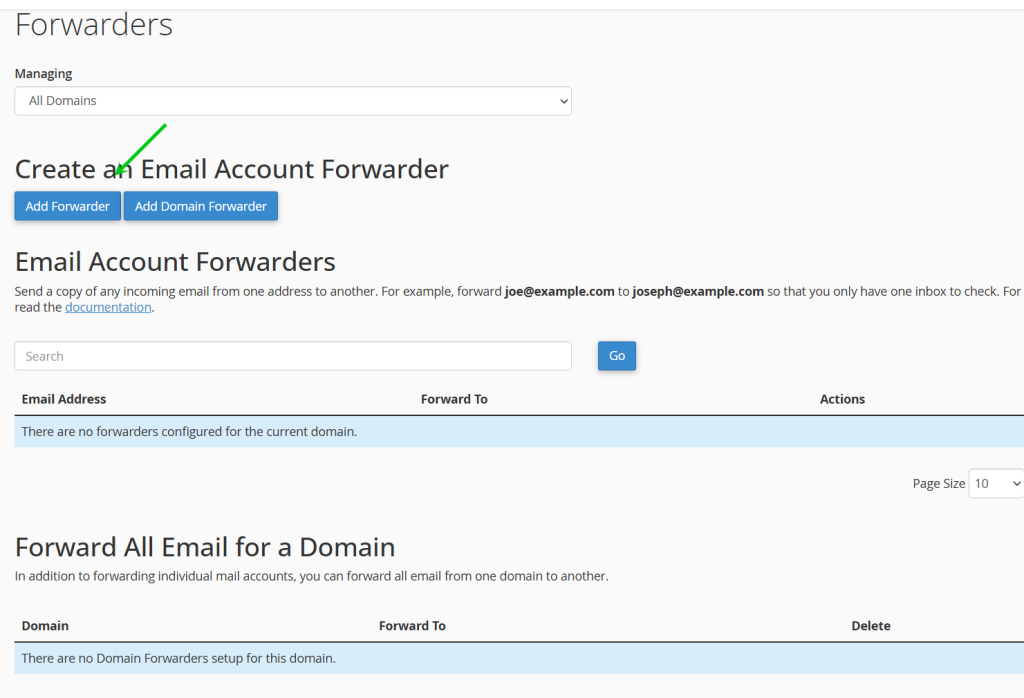
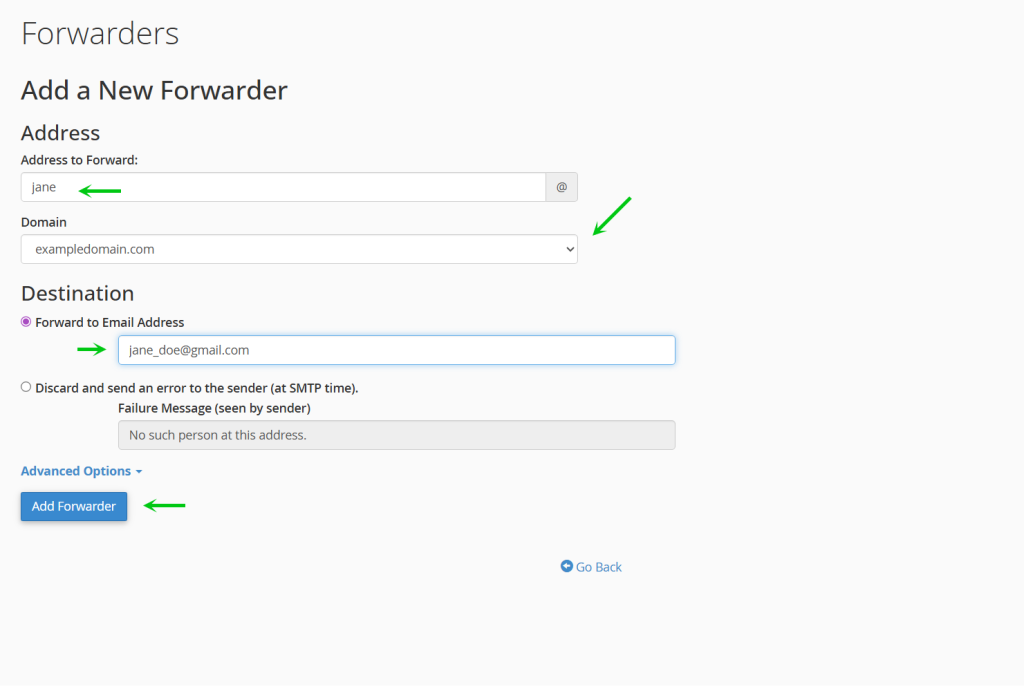
Fill in the Details Required
Next, fill in the fields Address to Forward, this is the field where you choose your email prefix. Thereafter, select your Domain (if you have more than one, you can choose from the dropdown menu) and lastly fill in either Forward to Email Address or if you wish to discard message you can select the Discard option below. There are additional options under Advanced Options such as Pipe to Program. The Pipe to Program feature allows you to forward your emails to a script (ex: .php script) to have the data dealt with, but that is an advanced feature. When you have selected your option, click the Add Forwarer to create the cPanel email forwarder.
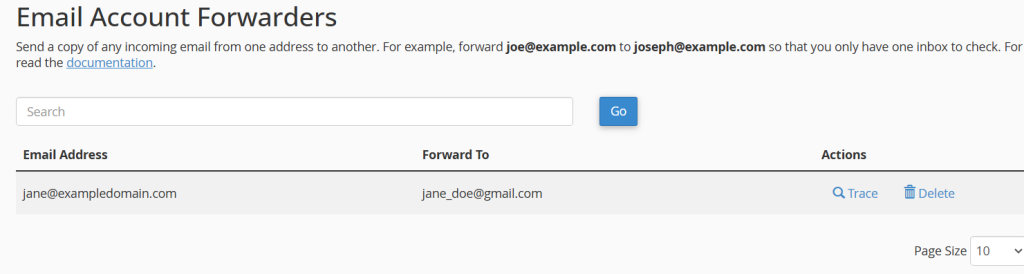
Your cPanel Email Forwarder is Ready
Finally, after you click the Add Forwarder you will be brought back your Email Account Forwarders list and you will see it there. You can Trace the action to track what happens when an email is delivered to your email address.
That is it, now you know how to create an email forwarder in cPanel through your Packetra hosting account.